Cart Widget
Cart Widget
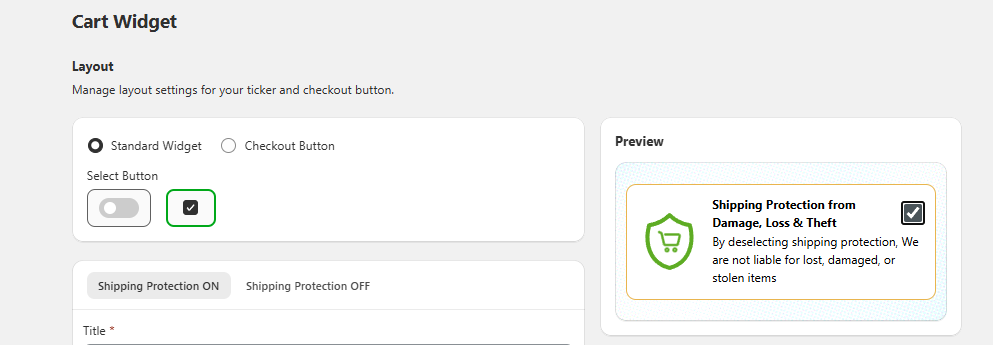
Manage text for shipping protection ON/OFF:

Shipping protection on—Set up the title and description when the insurance toggle is on or off.
Here you have predefined text, but you can set your own.

Insurance Icon:
From this section you have multiple default icons.
Also, you have the option to upload your own icon.
In the preview section you can see how it would look after the changes.

Select the insurance widget template—the selected template will be displayed above the checkout button on the storefront. A real-time preview of the template is also available in the preview section.
You have multiple templates here, which you can change as your choice.
Layout and style settings—
1. Space
The changes you can make
Show Icon, Icon Size, Icon Corner Radius, Inside Space, Outside Spacing

2. Font Size
The Font Size tab controls the typography used within the widget.
Heading Font Size Adjust the font size for the main heading text.
Subheading Font Size Set the font size for secondary or descriptive text within the widget.

3. Container
The Container tab allows you to modify the widget’s outer container design.
Border Radius Set the radius of the widget’s container corners to achieve square or rounded styling.
Border Size Configure the thickness of the widget’s border.

4. Color
Use the Color tab to define the widget’s color palette, ensuring consistency with your store’s theme.
The changes you can make
Heading Color, Subheading Color, Border Color, Background Color, Switch On Color, Switch Off Color
Last updated