# Welcome

We’re excited to have you with us! Explore our documentation to discover how Insureful can simplify and enhance your insurance management.

## Getting Started <a href="#cxcndkc" id="cxcndkc"></a>

To make your journey with Insureful smooth and productive, our documentation is organized into easy-to-follow sections

<table data-view="cards"><thead><tr><th></th><th></th><th></th><th data-hidden data-card-cover data-type="files"></th></tr></thead><tbody><tr><td><a href="/insureful/about-app/general-information"><strong>About App</strong></a></td><td></td><td></td><td><a href="https://3268869593-files.gitbook.io/~/files/v0/b/gitbook-x-prod.appspot.com/o/spaces%2FTMi2PAaPTTOdVXrEeup0%2Fuploads%2Fgkiy5enVjLf44v0LWxEl%2Fimage.jpeg?alt=media&amp;token=62244f72-e111-46fb-b623-225e07abd12a">image.jpeg</a></td></tr><tr><td><a href="/insureful/app-installation/basic-installation"><strong>How to Install and Set up</strong></a></td><td></td><td></td><td><a href="https://3268869593-files.gitbook.io/~/files/v0/b/gitbook-x-prod.appspot.com/o/spaces%2FTMi2PAaPTTOdVXrEeup0%2Fuploads%2FM4Z8RYiv6TTPPoh1GpuX%2Fimage%20(3).jpeg?alt=media&amp;token=8846c24f-78a3-4475-a8b5-2f8f37890c76">image (3).jpeg</a></td></tr><tr><td><a href="/insureful/app-uninstallation/uninstallation"><strong>App Uninstallation Steps</strong></a></td><td></td><td></td><td><a href="https://3268869593-files.gitbook.io/~/files/v0/b/gitbook-x-prod.appspot.com/o/spaces%2FTMi2PAaPTTOdVXrEeup0%2Fuploads%2FLBGRpdkToQXf0ctRELAd%2Fimage%20(2).jpeg?alt=media&amp;token=daf2fe2c-17df-4be3-8ed5-09e6e7db50b4">image (2).jpeg</a></td></tr><tr><td><a href="/insureful/faqs/general-questions"><strong>Frequently Asked Questions</strong></a> </td><td></td><td></td><td><a href="https://3268869593-files.gitbook.io/~/files/v0/b/gitbook-x-prod.appspot.com/o/spaces%2FTMi2PAaPTTOdVXrEeup0%2Fuploads%2FZPeoESAjCSQAENLmpbHC%2Fimage%20(1).jpeg?alt=media&amp;token=b6319038-fb0d-422b-a5fc-f1ec77a4fb2a">image (1).jpeg</a></td></tr></tbody></table>


# General Information

## Overview&#x20;

Welcome to Insureful, where protecting your products means additional revenue through shipping insurance. Our app lets you offer insurance protection for the products or services you sell, covering stolen or broken items that your customers have insured. With Insureful, you can manage custom insurance plans, whether fixed or percentage-based, according to your minimum and maximum cart subtotals.

### Key Features

* **Customizable Insurance Plans**: Set up insurance plans based on a percentage or fixed value of the cart total.
* **Claim Management**: Customers can easily submit claims with images and descriptions, and merchants can view and manage these claims.
* **Claim Fulfillment**: Fulfill claims by reordering items or issuing a full refund.
* **Automatic Insurance Addition**: Automatically add insurance to the cart when the customer meets the insurance plan criteria.
* **Email Notifications**: Both customers and merchants receive email notifications for every event, including claim generation and fulfillment.

## Benefits&#x20;

* **Protection and Peace of Mind**: Offer your customers added security by insuring their purchases.
* **Additional Revenue**: Increase your revenue by offering shipping insurance.
* **Easy Management**: Handle insurance plans and claims effortlessly within the app.
* **Efficient Communication**: Keep everyone informed with automatic email notifications for all insurance-related activities.

## Support&#x20;

We’re here to help! If you have any questions or run into any issues, our support team is ready to assist you.

* **Email**: <support@centous.com>
* **Live Chat**: Available on our app


# Basic Installation

Get started with our app on your Shopify store by following these simple steps.

## Install the App from the Shopify App Store

## Step 1: Find Insureful

1. Open the Shopify App Store.
2. Search for '**Insureful: Shipping Protection'** in the Shopify App Store, or visit directly at [Insureful on Shopify](https://apps.shopify.com/insureful).

## Step 2: Install the App

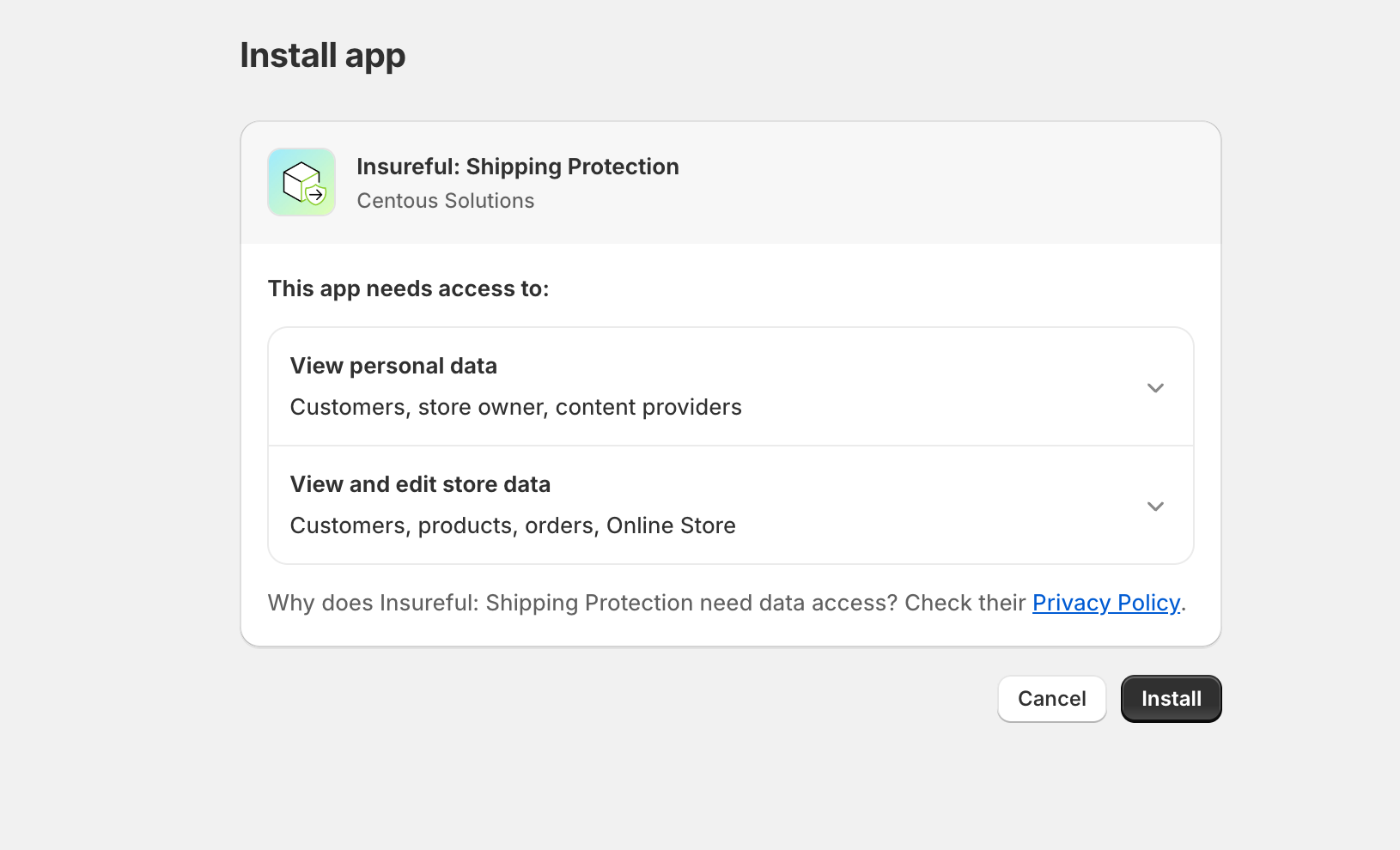
1. Look for the **"Install"** button on the left side of your screen.
2. Click the "Install" button.

<figure><img src="https://3268869593-files.gitbook.io/~/files/v0/b/gitbook-x-prod.appspot.com/o/spaces%2FTMi2PAaPTTOdVXrEeup0%2Fuploads%2FHGe8gQoHvNXRioJoxaHR%2FBI%201.png?alt=media&amp;token=f316cf70-40b5-4d50-b026-1ca6db0fec89" alt=""><figcaption><p>Find the Installation Button</p></figcaption></figure>

## Step 3: Review Permissions

1. You’ll see a list of permissions that app needs.
2. Take a moment to review them.
3. Click "**Install**" again to confirm.

<figure><img src="https://3268869593-files.gitbook.io/~/files/v0/b/gitbook-x-prod.appspot.com/o/spaces%2FTMi2PAaPTTOdVXrEeup0%2Fuploads%2FcYMC6BfCZTlNYyXbEcpL%2Finstall-permissions-ask.png?alt=media&amp;token=9d1ded11-bd5e-4bbf-80f0-887a82266b55" alt=""><figcaption><p>Review Permissions</p></figcaption></figure>

## Step 4:  Configuration Wizard

After installing, the app will guide you through a simple setup process.

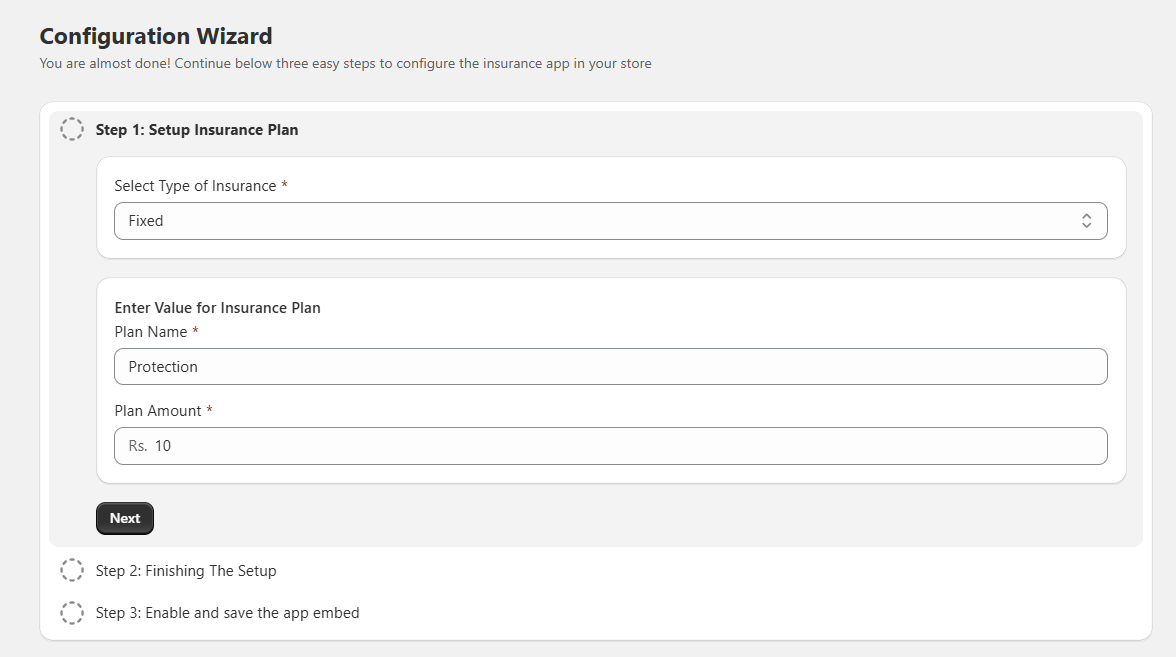
**Step 1: Set Up Your Insurance Plan**

This step has three parts:

1. **Choose the Type of Insurance**:
   * **Fixed Plan**: A set charge amount for insurance.
   * **Percentage Plan**: Insurance charge based on a percentage of the cart subtotal.
2. **Enter Plan Details**:
   * **Plan Name**: Give your insurance plan a name.
   * **Plan Amount**: Set the insurance amount or percentage.<br>

<figure><img src="https://3268869593-files.gitbook.io/~/files/v0/b/gitbook-x-prod.appspot.com/o/spaces%2FTMi2PAaPTTOdVXrEeup0%2Fuploads%2FcBf5VPz6YNvmdRZ2QGkm%2FScreenshot%202025-09-09%20162255.png?alt=media&amp;token=065ca9cf-7694-4887-98cd-66c3132a2a5b" alt=""><figcaption></figcaption></figure>

## Step 5: Finishing The Setup

1. **Enable or disable the app:**\
   Use the toggle to turn the app on or off for your store.
2. **Add Title and Description:**\
   Enter a short, catchy title for your insurance.
3. **Description of Insurance:**\
   Write a brief description of what the insurance covers and why it’s beneficial for your customers.

<figure><img src="https://3268869593-files.gitbook.io/~/files/v0/b/gitbook-x-prod.appspot.com/o/spaces%2FTMi2PAaPTTOdVXrEeup0%2Fuploads%2FfWPK4o5M0gpyS57mUTnP%2FScreenshot%202025-09-09%20162321.png?alt=media&amp;token=3cf0e719-5e71-42d2-a2b3-3697ea1f24d5" alt=""><figcaption></figcaption></figure>

## Step 6: Enable and save the app embed.

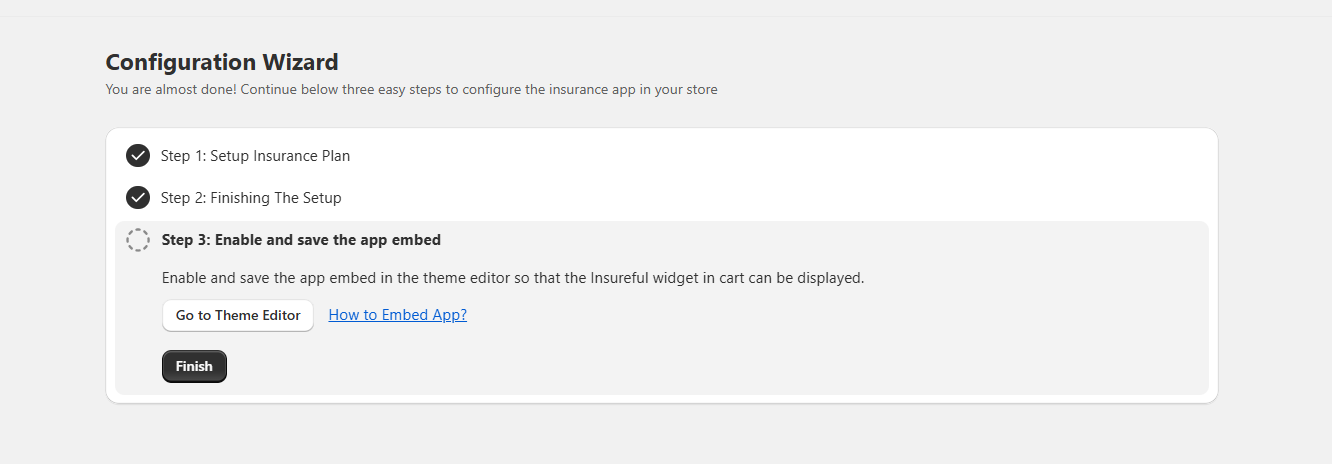
After completing the setup, you need to enable the **Insureful app embed** in your theme so the widget can display in the cart.

1. Click on **Go to Theme Editor**. This will open the Shopify **Theme Customizer**.
2. From the left sidebar, go to **App embeds**.
3. Find **the Insureful App Embed** and switch it **ON**.
4. Click **Save** in the top-right corner.
5. Once done, return to the setup wizard and click **Finish**.

<figure><img src="https://3268869593-files.gitbook.io/~/files/v0/b/gitbook-x-prod.appspot.com/o/spaces%2FTMi2PAaPTTOdVXrEeup0%2Fuploads%2FZDRkTU7szdtoX5el11QI%2FScreenshot%202025-09-09%20162341.png?alt=media&amp;token=d129a3fc-ea26-4f91-b977-bfd4ae68ccc5" alt=""><figcaption></figcaption></figure>

&#x20;✅ After saving, the installation is complete, and the Insureful widget will be visible in your store’s cart.


# App Overview&#x20;

Welcome to your Insureful dashboard! Here, you can access real-time analytics and manage your orders, claims, and email templates with ease.

### Dashboard Overview

From the dashboard, you can see key analytics at a glance:

* **Total Orders with Insurance**: The total number of orders that include insurance.
* **Insurance Revenue**: The total amount you’ve received from insurance.
* **Total Refund Amounts**: The total amount refunded through insurance claims.

**Total Sales and Refunds**

Check out the graph to see the revenue generated from total sales and refunds over time. This visual representation helps you track and analyze your overall earnings and refund trends.

<figure><img src="https://3268869593-files.gitbook.io/~/files/v0/b/gitbook-x-prod.appspot.com/o/spaces%2FTMi2PAaPTTOdVXrEeup0%2Fuploads%2FXPy1COYOZZTx2eUVAOxW%2Fimage%20(24).png?alt=media&amp;token=fd13988b-0b28-46e3-b030-0197aa5211fd" alt=""><figcaption></figcaption></figure>

## Order Details

You can also view the details of an order by clicking on the order number in the "Order No." column. This will show you all relevant information about the selected order.

### Viewing Orders

In the "Orders" menu, you’ll find all orders that include insurance products. This section allows you to:

* **Filter Orders by Date**: Easily find orders within a specific date range.

<figure><img src="https://3268869593-files.gitbook.io/~/files/v0/b/gitbook-x-prod.appspot.com/o/spaces%2FTMi2PAaPTTOdVXrEeup0%2Fuploads%2FT8SVo0gLeq65aRaTcgMG%2FScreenshot%202025-10-14%20154642.png?alt=media&amp;token=2e558144-b965-45d5-a93c-537ca1da9a7a" alt=""><figcaption></figcaption></figure>

* **Search by Order Number**: Quickly locate a specific order by entering its order number.

<figure><img src="https://3268869593-files.gitbook.io/~/files/v0/b/gitbook-x-prod.appspot.com/o/spaces%2FTMi2PAaPTTOdVXrEeup0%2Fuploads%2FiGwjY52ghIfunpHV69PD%2FScreenshot%202025-10-14%20154327.png?alt=media&amp;token=15892ead-e036-468a-9d6e-44d682904b19" alt=""><figcaption></figcaption></figure>

* **Filter Orders by Claim Status**: Quickly locate orders based on their claim status.

<figure><img src="https://3268869593-files.gitbook.io/~/files/v0/b/gitbook-x-prod.appspot.com/o/spaces%2FTMi2PAaPTTOdVXrEeup0%2Fuploads%2FjCYSugzTfFECmEFxAb5v%2FScreenshot%202025-10-14%20155226.png?alt=media&amp;token=0d6e5fbd-ee1e-4494-bab9-9d7779ccd272" alt=""><figcaption></figcaption></figure>

* In the **Orders** section, use the **Claim Status** dropdown menu on the left side of the screen. Select your preferred status option—such as **Approved**, **In Progress**, **Canceled**, **Partially Approved**, or **Requested**—based on your requirement.

<figure><img src="https://3268869593-files.gitbook.io/~/files/v0/b/gitbook-x-prod.appspot.com/o/spaces%2FTMi2PAaPTTOdVXrEeup0%2Fuploads%2F1L487hMgwbZnOVCGCC0X%2FScreenshot%202025-10-14%20155238.png?alt=media&amp;token=dddbebf7-5fb9-403b-be89-edc661bd081d" alt=""><figcaption></figcaption></figure>

* The system will automatically filter and display only the orders that match the selected claim status. Review the filtered list to quickly locate your specific order.

### **Manage Claims**

In the **“Manage Claims”** page, you can see all the orders for which customers have requested a claim.\
This section helps you review, filter, and manage customer claims efficiently.

* **Filter Claims by Date**: Find claims submitted within a specific date range.

<figure><img src="https://3268869593-files.gitbook.io/~/files/v0/b/gitbook-x-prod.appspot.com/o/spaces%2FTMi2PAaPTTOdVXrEeup0%2Fuploads%2FJzKPDBfuMAab7qUUU63h%2FScreenshot%202025-10-14%20160736.png?alt=media&amp;token=bbb810f7-fb2e-4cfa-b0e7-ee9fafbc32e3" alt=""><figcaption></figcaption></figure>

* **Filter Claims by Numbers**: Easily locate submitted claims based on their order numbers.

<figure><img src="https://3268869593-files.gitbook.io/~/files/v0/b/gitbook-x-prod.appspot.com/o/spaces%2FTMi2PAaPTTOdVXrEeup0%2Fuploads%2FKYDMsbHJZVU3eHeyTB9q%2FScreenshot%202025-10-14%20160952.png?alt=media&amp;token=a41c022d-77c0-4f6d-8a0f-b66e6ba2e22d" alt=""><figcaption></figcaption></figure>

* **View Claim Details**: See detailed information about each claim, including customer information and claim reasons.

<figure><img src="https://3268869593-files.gitbook.io/~/files/v0/b/gitbook-x-prod.appspot.com/o/spaces%2FTMi2PAaPTTOdVXrEeup0%2Fuploads%2FQB7b6tVnoXMhWMKz4HRM%2Fimage%20(25).png?alt=media&amp;token=4a8bcf34-829a-4bc1-a1fb-05e127b771ec" alt=""><figcaption></figcaption></figure>

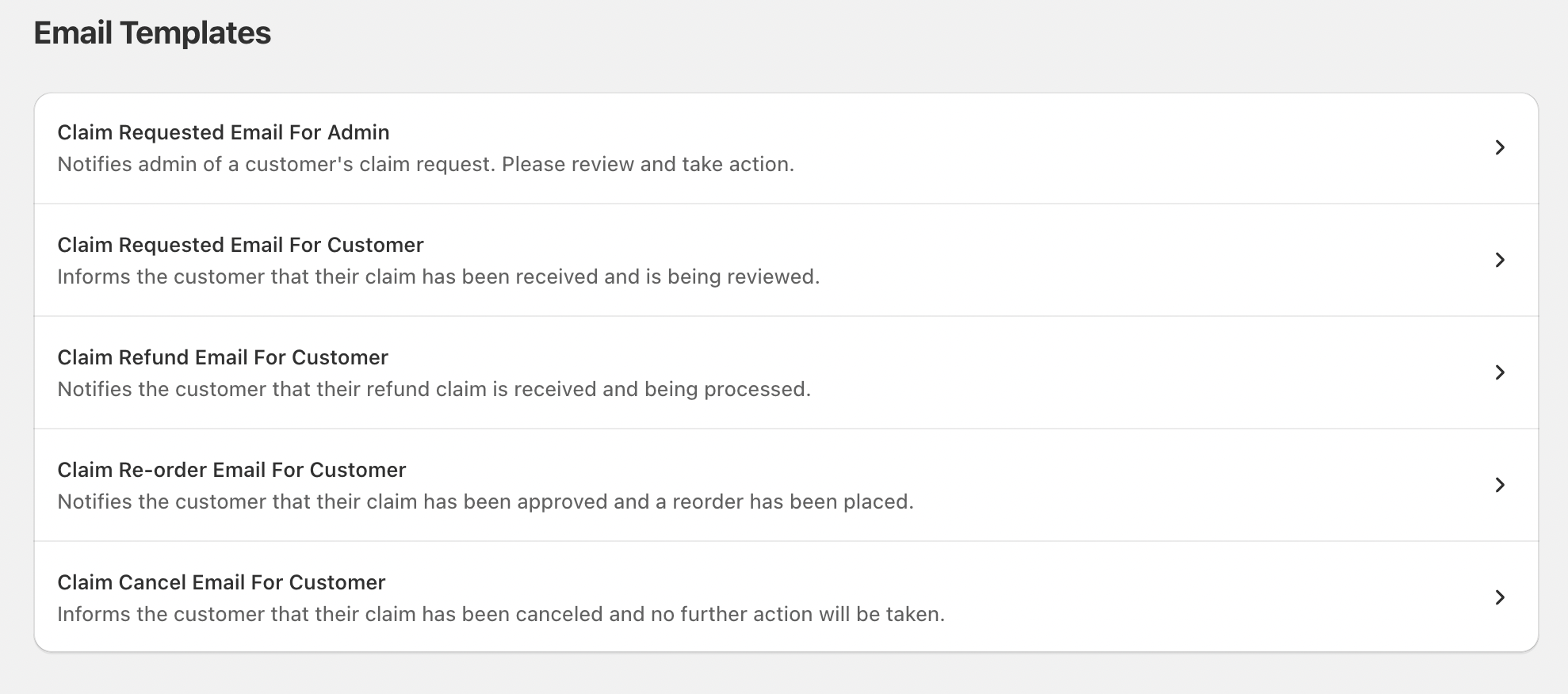
### Email Templates:

Default Templates

The app comes with 5 default email templates that are used to communicate with both customers and admins. These templates cover various scenarios and ensure consistent and professional communication.

<figure><img src="https://3268869593-files.gitbook.io/~/files/v0/b/gitbook-x-prod.appspot.com/o/spaces%2FTMi2PAaPTTOdVXrEeup0%2Fuploads%2FOwXPxXriBG1jAY66JQDl%2Femail-templates.png?alt=media&amp;token=2fac5628-4dbc-4fce-a346-78b5934af9e5" alt=""><figcaption><p>Email Templates Overview </p></figcaption></figure>


# Manage App Settings

Get Started&#x20;

{% content-ref url="/pages/S2DmROXEcle4N4WilwFp" %}
[Insurance Plan](/insureful/app-installation/manage-app-settings/insurance-plan)
{% endcontent-ref %}

{% content-ref url="/pages/ADyi8Kkq21kVGX50BJOq" %}
[Insurance Widget](/insureful/app-installation/manage-app-settings/insurance-widget)
{% endcontent-ref %}

{% content-ref url="/pages/TucWBSQHQ3YzvjCnaack" %}
[Claims](/insureful/app-installation/manage-app-settings/claims)
{% endcontent-ref %}

{% content-ref url="/pages/4wyuOdWMGQffot0yCLbo" %}
[Insurance  Claim Page](/insureful/app-installation/manage-app-settings/insurance-claim-page)
{% endcontent-ref %}

{% content-ref url="/pages/jcIblQYbUBUHeY9wYKlL" %}
[Manage Email  Templates](/insureful/app-installation/manage-app-settings/manage-email-templates)
{% endcontent-ref %}


# Insurance Plan

We offer two types of insurance plans: Fixed Plan and Percentage Plan. Let’s explore how to create these plans in detail.

## Fixed Plan—Plan by Cart Value

1. **Navigate to Insurance Plans Menu**: Go to the Insurance Plans menu from the main menu.
2. **Choose a Fixed Plan**: Click the edit button, select the insurance plan type to "**Fixed**" and plan type to "**Plan by Cart Value."**
3. **Select Plan by Cart Value**: Choose the Plan by Cart Value option under Fixed Plan.
4. **View Existing Plans**: You will see the list of created plans in the section below.
5. **Create a New Plan**:

   * Click on the **"Add New Plan"** button.
   * A popup will appear.
   * Enter the following details:
     * **Plan Name**
     * **Minimum Amount**
     * **Maximum Amount**
     * **Amount for Insurance**
   * Click the **"Create"** button.
   * The new plan will appear in the list.

   <figure><img src="https://3268869593-files.gitbook.io/~/files/v0/b/gitbook-x-prod.appspot.com/o/spaces%2FTMi2PAaPTTOdVXrEeup0%2Fuploads%2FaVj9WVENJ0YncfVklBHr%2FScreenshot%202025-10-14%20161731.png?alt=media&amp;token=b17cf9f7-483b-43be-8fc4-d57841b7d8bd" alt=""><figcaption></figcaption></figure>

<figure><img src="https://3268869593-files.gitbook.io/~/files/v0/b/gitbook-x-prod.appspot.com/o/spaces%2FTMi2PAaPTTOdVXrEeup0%2Fuploads%2F7YcqINiYCt7oIsW0xuON%2FScreenshot%202025-10-14%20161926.png?alt=media&amp;token=7257e5e1-6d18-4d98-9045-d2c7f52dbe79" alt=""><figcaption></figcaption></figure>

### **Fixed - Single Plan**

1. **Add or Update Single Plan**:
   * Click on the Edit Plan button
   * Select Fixed Plan and then Plan Type, and click on the update button.
   * Enter the plan name and amount in the listing section.
   * Click the **"Save"** button to save your changes.

<figure><img src="https://3268869593-files.gitbook.io/~/files/v0/b/gitbook-x-prod.appspot.com/o/spaces%2FTMi2PAaPTTOdVXrEeup0%2Fuploads%2FKAcGCrbQhUei3gElsZBA%2FScreenshot%202025-10-14%20162700.png?alt=media&amp;token=b34011ec-5413-4d9f-92df-d81bbc7061bb" alt=""><figcaption></figcaption></figure>

<figure><img src="https://3268869593-files.gitbook.io/~/files/v0/b/gitbook-x-prod.appspot.com/o/spaces%2FTMi2PAaPTTOdVXrEeup0%2Fuploads%2Fjf7gyP1OLtAjXoWW5VeZ%2FScreenshot%202025-09-09%20192745.png?alt=media&amp;token=86881fcf-2b64-4bdb-8010-50e925eedf61" alt=""><figcaption></figcaption></figure>

#### Edit Plan

1. **Edit an existing plan:**
   * Click on the three dots and then the **"Edit"** button for the respective plan in the listing section.
   * A popup will display with the current plan details.
   * Adjust the values as needed.
   * Click the **"Update"** button to save your changes.

<figure><img src="https://3268869593-files.gitbook.io/~/files/v0/b/gitbook-x-prod.appspot.com/o/spaces%2FTMi2PAaPTTOdVXrEeup0%2Fuploads%2FVYD4PEWQcdunNudKiKsG%2FScreenshot%202025-09-09%20194413.png?alt=media&amp;token=1647a708-e3e5-4719-8af2-87935a0d15c9" alt=""><figcaption></figcaption></figure>

**Delete Plan**

* Click on the 3 dots and then the **"Delete"** button in the plan listing section.

### Percentage Plan—Single Plan

1. **Add or Update Single Plan**:
   * Select Percentage Plan and then choose Single Plan.
   * Enter the plan name and percentage in the listing section.
   * Click the **"Save"** button to save your changes.

<figure><img src="https://3268869593-files.gitbook.io/~/files/v0/b/gitbook-x-prod.appspot.com/o/spaces%2FTMi2PAaPTTOdVXrEeup0%2Fuploads%2FcQi0IotD1zIGA4deLUYI%2Fpercentage-singple-plan.png?alt=media&amp;token=2758197a-1f60-44e8-8a9e-2f1d739f41c6" alt=""><figcaption><p>Select Percentage Plan and Enter the Details </p></figcaption></figure>

#### Edit Plan

1. **Edit an Existing Plan**:

   * Click on the 3 dots and then the **"Edit"** button for the respective plan in the listing section.
   * A popup will display with the current plan details.
   * Adjust the values as needed.
   * Click the **"Update"** button to save your changes.

<figure><img src="https://3268869593-files.gitbook.io/~/files/v0/b/gitbook-x-prod.appspot.com/o/spaces%2FTMi2PAaPTTOdVXrEeup0%2Fuploads%2F5yjQhVYmNUM8azQH1xD2%2FScreenshot%202025-09-09%20193712.png?alt=media&amp;token=4bbae8c9-d229-48a1-a499-eaedc536a798" alt=""><figcaption></figcaption></figure>

### Advanced settings:&#x20;

When creating a **Percentage Plan Type** in Insureful, you can set a **Minimum Amount** and **Maximum Amount** to define the cart value range where the plan will apply. Along with the percentage, the app calculates an **increment amount** to determine how the insurance fee scales within that range.

#### How It Works

<figure><img src="https://3268869593-files.gitbook.io/~/files/v0/b/gitbook-x-prod.appspot.com/o/spaces%2FTMi2PAaPTTOdVXrEeup0%2Fuploads%2FNMUXeC9wdTz8kC498GaK%2FScreenshot%202025-09-09%20185851.png?alt=media&amp;token=945ecbd6-a0e8-4209-8ae4-c81440405936" alt=""><figcaption></figcaption></figure>

How does it work?&#x20;

* Enter the **minimum amount** and **maximum amount** for your plan.
* Based on the range, the system automatically calculates a default **increment amount.**
  * Example: If Minimum Amount = **1000.00** and Maximum Amount = **2000.00**, the calculated Increment Amount will be **1.5**.
* The increment amount ensures that the percentage fee is applied in stepwise calculations across the defined range.
* You can **manually adjust** the increment amount using the slider or input box to better align with your business needs.

## Percentage-Plan by Cart Value

1. **Navigate to Insurance Plans Menu**: Go to the Insurance Plans menu from the main menu.
2. **Choose a Percentage Plan**: Click the edit button, select the insurance plan type to "**Percentage**" and plan type to "**Plan by Cart Value."**
3. **Select Plan by Cart Value**: Choose the Plan by Cart Value option under Percentage Plan.
4. **View Existing Plans**: You will see the list of created plans in the section below.
5. **Create a New Plan**:
   * Click on the **"Add New Plan"** button.
   * A popup will appear.
   * Enter the following details:
     * **Plan Name**
     * **Minimum Amount**
     * **Maximum Amount**
     * **Percentage for Insurance**
   * Click the **"Create"** button.
   * The new plan will appear in the list.

<figure><img src="https://3268869593-files.gitbook.io/~/files/v0/b/gitbook-x-prod.appspot.com/o/spaces%2FTMi2PAaPTTOdVXrEeup0%2Fuploads%2FNf0D5e2xiu5viWKoD3d1%2FScreenshot%202025-09-09%20195158.png?alt=media&amp;token=c389ffee-5629-46c7-ba74-b1a8be13cfce" alt=""><figcaption></figcaption></figure>

<figure><img src="https://3268869593-files.gitbook.io/~/files/v0/b/gitbook-x-prod.appspot.com/o/spaces%2FTMi2PAaPTTOdVXrEeup0%2Fuploads%2FdYqmIVqFXydo2R7P7Yeo%2FScreenshot%202025-09-09%20195103.png?alt=media&amp;token=17cbd68f-daee-4e58-bd2f-5cca1b8ba537" alt=""><figcaption></figcaption></figure>

<figure><img src="https://3268869593-files.gitbook.io/~/files/v0/b/gitbook-x-prod.appspot.com/o/spaces%2FTMi2PAaPTTOdVXrEeup0%2Fuploads%2FbyHHUg1XUgrHmoa5vxK1%2FScreenshot%202025-09-09%20194704.png?alt=media&amp;token=44b1d8b5-e485-4ac4-aece-22a0bddb8220" alt=""><figcaption></figcaption></figure>

#### Delete Plan

* Click on the 3 dots and then the **"Delete"** button in the plan listing section.


# Fixed - Single Plan

Lets setup Fixed - Single plan

**Purpose:**&#x20;

* **Fixed Plan** is to provide customers with a **simple and predictable shipping protection fee**. No matter the order size, the protection cost always stays the same. This makes it easier for customers to understand and ensures **consistent revenue** for the business.

### Add or Update Single Plan

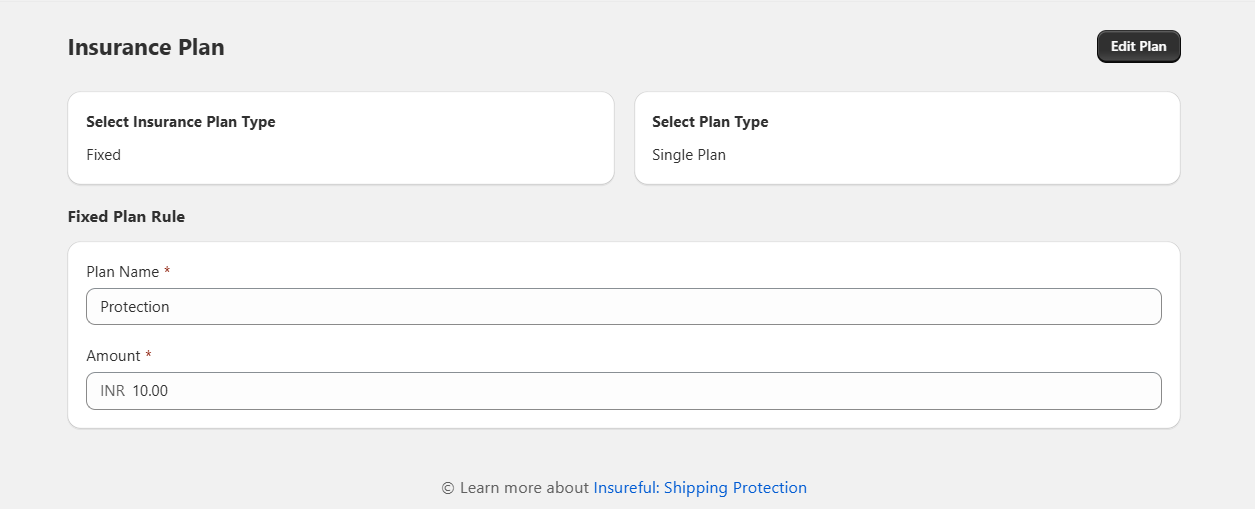
* Click on the Edit Plan button
* Select **Fixed Plan** and then Plan type as **Single Plan** and click on update button.
* Enter the Plan Name and Amount in the form section.
* Click the **"Save"** button to save your changes.<br>

  <figure><img src="https://3268869593-files.gitbook.io/~/files/v0/b/gitbook-x-prod.appspot.com/o/spaces%2FTMi2PAaPTTOdVXrEeup0%2Fuploads%2FVcwUFMeFcZcNZkMSnc00%2FScreenshot%202025-09-10%20123215.png?alt=media&amp;token=d70d808d-e338-415d-ba1a-a5ab1bfe7a54" alt=""><figcaption></figcaption></figure>

#### Example

* Cart Value: INR 500 → Protection Fee = **INR 100**
* Cart Value: INR 5,000 → Protection Fee = **INR 100**
* Cart Value: INR 50,000 → Protection Fee = **INR 100**

It means whatever your cart total, it should charge fixed amount that you setup.&#x20;

<div align="left" data-full-width="false"><figure><img src="https://3268869593-files.gitbook.io/~/files/v0/b/gitbook-x-prod.appspot.com/o/spaces%2FTMi2PAaPTTOdVXrEeup0%2Fuploads%2FmI3Q3mEciCf5QoZIe1QR%2FScreenshot%202025-09-11%20185734.png?alt=media&amp;token=aa012ed0-260c-485d-ab6d-fe70afc9ebc8" alt="" width="513"><figcaption></figcaption></figure></div>


# Fixed - Plan by cart value

Lets set up Fixed - plan by cart value

**Purpose:**&#x20;

* **Provide flexibility in insurance charges** – Merchants can define different plans for different spending levels.
* **Ensure fairness for customers** – A customer with a smaller cart does not pay the same insurance as someone with a higher cart value.
* **Simplify cost calculation** – Instead of complex percentage-based formulas, merchants can assign simple fixed amounts for each price range.
* **Encourage higher order value** – Customers may see that by increasing their cart value, they get a better coverage plan, which can improve average order value.

### Steps to configure&#x20;

1. **Navigate to Insurance Plans Menu**: Go to the Insurance Plans menu from the main menu.
2. **Choose a Fixed Plan**: Click the edit button, select the insurance plan type to "**Fixed**" and plan type to "**Plan by Cart value**"
3. **Select Plan by Cart Value**: Choose the Plan by Cart Value option under Fixed Plan.
4. **View Existing Plans**: You will see the list of created plans in the section below.   \
   \
   \
   &#x20; &#x20;

   <figure><img src="https://3268869593-files.gitbook.io/~/files/v0/b/gitbook-x-prod.appspot.com/o/spaces%2FTMi2PAaPTTOdVXrEeup0%2Fuploads%2FIeIWodeXRbemdGiLoIqK%2Fimage.png?alt=media&amp;token=910aebd1-8093-47da-aeb6-4bd9621de347" alt=""><figcaption></figcaption></figure>

&#x20;                                                                      Choose the Plan by Cart Value and List of Plans

5. **Create a New Plan**:
   * Click on the **"Add New Plan"** button.
   * A popup will appear.
   * Enter the following details: \
     &#x20;       1\. **Plan Name**\
     &#x20;       **2. Minimum Amount**\
     &#x20;       **3. Maximum Amount**\
     &#x20;       **4. Amount for Insurance**
   * Click the **"Create"** button.
   * The new plan will appear in the list.

**Example Records:**&#x20;

<figure><img src="https://3268869593-files.gitbook.io/~/files/v0/b/gitbook-x-prod.appspot.com/o/spaces%2FTMi2PAaPTTOdVXrEeup0%2Fuploads%2F9LgBHBsDvxMo1MsQoAhI%2Fimage.png?alt=media&amp;token=5fb230b3-7ee8-4adc-8316-5b74479c5a77" alt=""><figcaption></figcaption></figure>

| Plan Name           | Min Amount | Max Amount | Amount |
| ------------------- | ---------- | ---------- | ------ |
| Below 1000          | 10         | 100        | 5      |
| Between 1000 - 2000 | 1000       | 2000       | 100    |
| Between 2000 - 5000 | 2000       | 5000       | 250    |

**Note:**&#x20;

Based on the **order subtotal**, the app will automatically compare the cart value with the defined **Min and Max ranges**, and then decide which insurance charge to apply.\
This means the insurance cost is **not the same for all orders**, but depends on the cart value range selected.

#### Output:&#x20;

<figure><img src="https://3268869593-files.gitbook.io/~/files/v0/b/gitbook-x-prod.appspot.com/o/spaces%2FTMi2PAaPTTOdVXrEeup0%2Fuploads%2FWlA3rpM0K3wy45TSoSlu%2Fimage.png?alt=media&amp;token=46e10002-7b78-42e9-bc53-212e5482b8a4" alt=""><figcaption></figcaption></figure>


# Percentage - Single plan

Lets set up Percentage - single plan

**Summary: 'Percentage - Single plan' is used because it automatically creates variants and shipping protection prices, which also can be modified by the user.**

**Note:** This app will not give you the exact insurance amount. The amount always depends on the cart order value.

#### Summary: The Single-Percentage plan is used for a single plan that works on the basis of the percentage of the amount of the order with multiple features like.

### **Add or Update Single - Percentage Plan**:

* Select Percentage Plan and then choose Single Plan.

* Enter the plan name and percentage in the form section.

* Click the **"Save"** button to save your changes.\
  \ <br>

  <figure><img src="https://3268869593-files.gitbook.io/~/files/v0/b/gitbook-x-prod.appspot.com/o/spaces%2FTMi2PAaPTTOdVXrEeup0%2Fuploads%2F5vFJQ9V3djxK8tjpUZ4p%2FScreenshot%202025-09-10%20124538.png?alt=media&amp;token=32e2cb4d-f269-4f6b-bd18-ac969f10c009" alt=""><figcaption></figcaption></figure>

* When the **shipping protection widget** is enabled, the app automatically creates a product with 100 variants for percentage-based pricing (ranging from **₹1 to ₹99.98**).

* The widget calculates the insurance fee based on the cart total and the set percentage.

* It then selects the **nearest higher-priced variants** to display.

* **Example:** If 5% of a ₹2200 cart = ₹110, the widget will display the next higher variant, ₹111.\ <br>

  <figure><img src="https://3268869593-files.gitbook.io/~/files/v0/b/gitbook-x-prod.appspot.com/o/spaces%2FTMi2PAaPTTOdVXrEeup0%2Fuploads%2Fx73kRDxDBzbL5AJhdR5K%2Fimage.png?alt=media&amp;token=d816862e-f74e-4354-a755-bd3e6350cb1f" alt=""><figcaption></figcaption></figure>

* As we can see, it automatically generates 100 variants for percentage-based ranging from 1 to 99.98. The widget calculates a protection fee based on the cart total and your set percentage, then selects the nearest higher-priced variant. For example, if 2% of a 220 cart is 4.40, the widget will display the closest higher variant, 5.04.

<figure><img src="https://3268869593-files.gitbook.io/~/files/v0/b/gitbook-x-prod.appspot.com/o/spaces%2FTMi2PAaPTTOdVXrEeup0%2Fuploads%2F5t36bKvHvWgy5Wvgdvuw%2Fimage.png?alt=media&amp;token=46974b2a-a6b1-47ef-bb6c-905668274926" alt=""><figcaption></figcaption></figure>

* “Using the three-dot button, you can set up the shipping protection price as needed. After making changes, click the update button to confirm your new settings.”

<figure><img src="https://3268869593-files.gitbook.io/~/files/v0/b/gitbook-x-prod.appspot.com/o/spaces%2FTMi2PAaPTTOdVXrEeup0%2Fuploads%2FDchiHQ964redf4LCUFZy%2Fimage.png?alt=media&amp;token=4683b246-9f84-41f6-833d-a1f5c0a9363d" alt=""><figcaption></figcaption></figure>

* You can enable the advanced settings by clicking the **Generate** button.
* This feature allows you to adjust the minimum charge so users can set it according to their needs.
* The **Increment Amount** option lets you define how much the price should increase. For example, if you set&#x20;
* The increment amount is 1.05; the price will increase in steps of 1.05.
* Additionally, you can choose the number of tiers you want, with a maximum limit of 100 tiers.

<figure><img src="https://3268869593-files.gitbook.io/~/files/v0/b/gitbook-x-prod.appspot.com/o/spaces%2FTMi2PAaPTTOdVXrEeup0%2Fuploads%2FP9td0fV8jE9aRAavz6M4%2Fimage.png?alt=media&amp;token=8886e847-c0cf-44e3-b395-94b122cfb96c" alt=""><figcaption></figcaption></figure>


# Percentage - Plan by cart value

Lets setup Percentage - plan by cart value

**Purpose: The ‘Percentage – Plan by Cart Value’** page is used to set the insurance amount based on a percentage of the cart value.

**Note:** This app will not give you the exact insurance amount. The amount always depends on the cart order value.

**Summary: The** **Percentage by Cart Value** plan allows charging insurance based on the cart value. You can create multiple plans according to the cart value. With the help of the increment amount feature, you can set the exact amount you want to add.

### **This Plan only works with the Shopify Plus plan**&#x20;

**Plan by Cart Value**

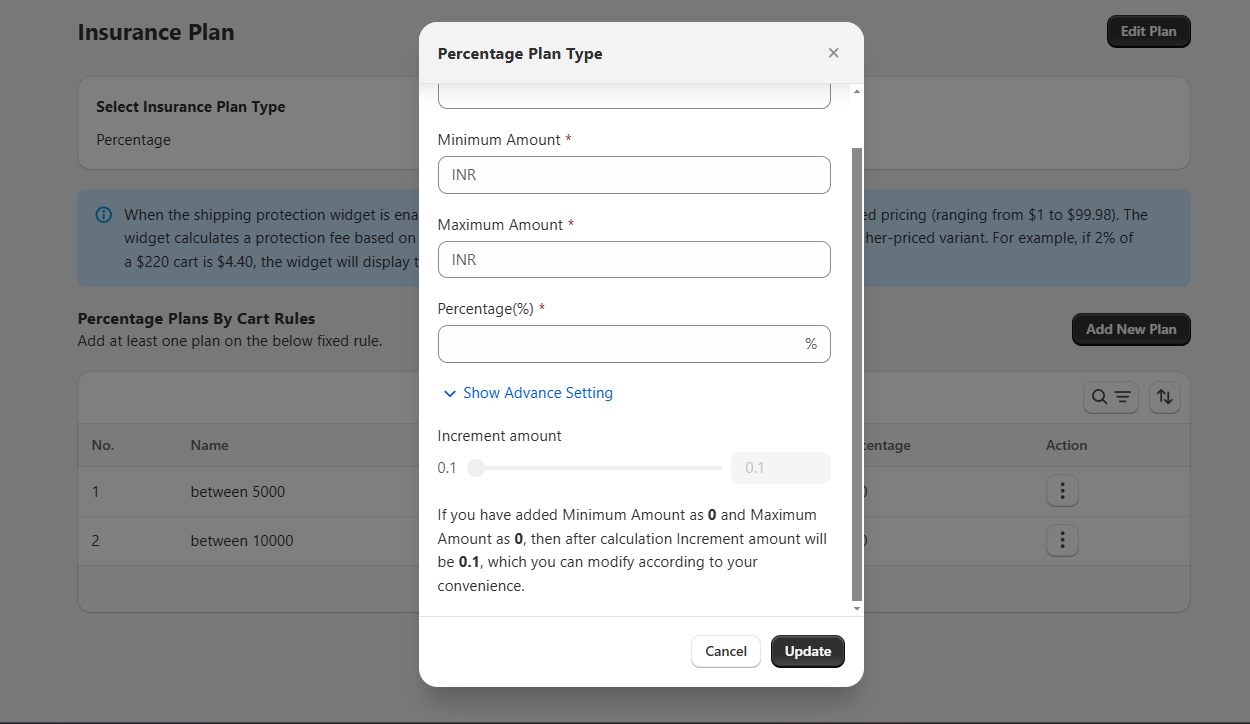
&#x20;       In this screen, you can create a **percentage plan** by entering the following details:

* **Plan Name**—The name of the insurance plan (e.g., Protection).
* **Minimum Amount**—The lowest cart value for which this plan will apply.
* **Maximum Amount** – The highest cart value for which this plan will apply.
* **Percentage (%—The** percentage of the cart value that will be charged as insurance.

You can also expand **Show Advance Setting** to configure additional options.

This screen shows the same Percentage Plan but with **Advance Setting** enabled:<br>

<figure><img src="https://3268869593-files.gitbook.io/~/files/v0/b/gitbook-x-prod.appspot.com/o/spaces%2FTMi2PAaPTTOdVXrEeup0%2Fuploads%2FdiqiSc7bC9SPoSCueqjq%2Fimage.png?alt=media&amp;token=85644f70-b05d-4190-81da-d36bf82f1709" alt=""><figcaption></figcaption></figure>

* **Increment Amount**—This defines the step or increment in which the calculated insurance fee will be rounded or adjusted. For example, if the minimum is 1000 and the maximum is 2000, the system calculates the insurance, then applies an increment (like 1.5) that you can adjust for convenience.<br>

<figure><img src="https://3268869593-files.gitbook.io/~/files/v0/b/gitbook-x-prod.appspot.com/o/spaces%2FTMi2PAaPTTOdVXrEeup0%2Fuploads%2FXzzmkj3HC9E5JriFAPXj%2FScreenshot%202025-09-15%20211758.png?alt=media&amp;token=ce5e786e-6fc8-47ef-b4a3-4adfd0b7fcb2" alt=""><figcaption></figcaption></figure>

\
Example:&#x20;

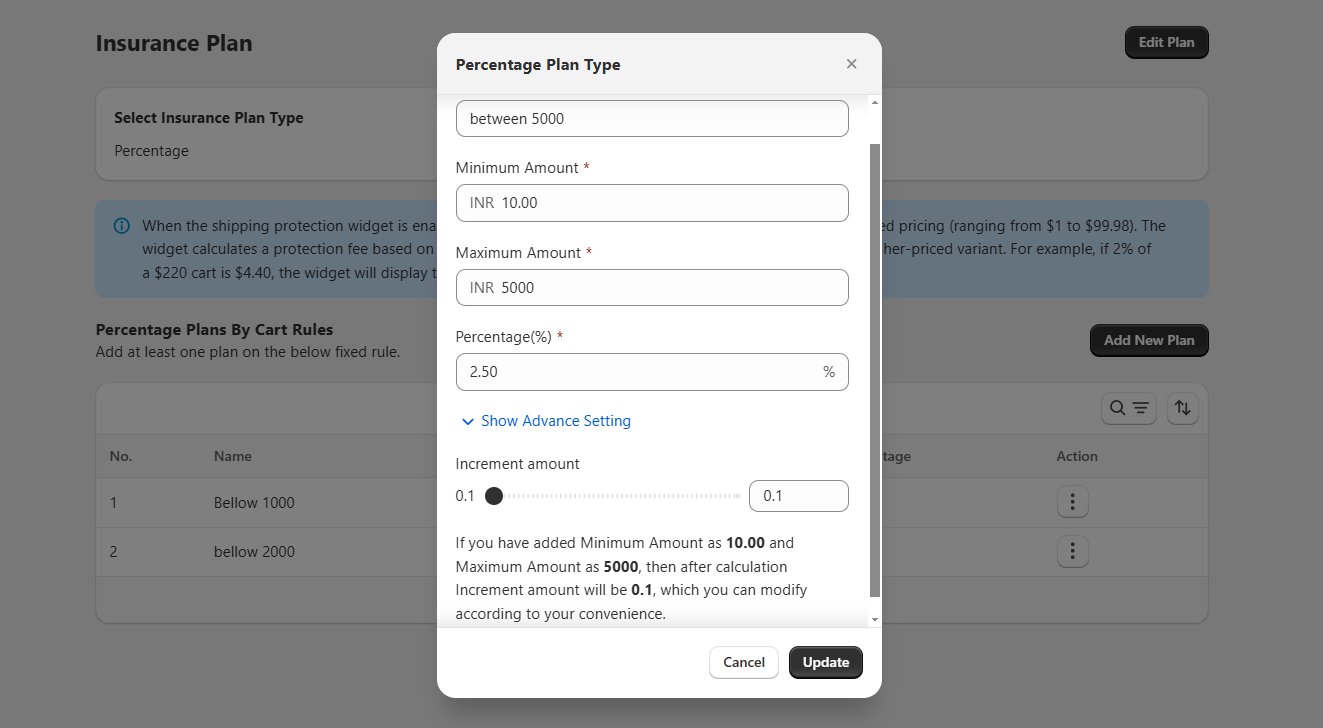
| NAME                       | MIN price | MAX price | Percentage |
| -------------------------- | --------- | --------- | ---------- |
| Cart between 10 to 5000    | 10        | 5000      | 2.5        |
| Cart between 5000 to 10000 | 5000      | 10000     | 5          |

&#x20;

<figure><img src="https://3268869593-files.gitbook.io/~/files/v0/b/gitbook-x-prod.appspot.com/o/spaces%2FTMi2PAaPTTOdVXrEeup0%2Fuploads%2FoO81i1GEKsqxlSlIMiGK%2FScreenshot%202025-10-15%20112408.png?alt=media&amp;token=964e0dfd-e8e5-4dc1-9b78-78aaf1652315" alt=""><figcaption></figcaption></figure>


# Insurance Widget

To display the Insureful widget on your store's frontend, follow these simple steps:

### Step 1: Create Insurance Plans

Before adding the Insureful widget, make sure you have created your insurance plans. If you haven't done this yet, please follow the steps outlined in the [Insurance Plans ](/insureful/app-installation/manage-app-settings/insurance-plan)section of this documentation.

### Step 2: Enable the App Embed

1. **Open Theme Editor**:
   * Go to your Shopify admin panel.
   * Navigate to **Online Store** > **Themes**.
   * Click on the **Customize** button for your current theme.
2. **Enable Insureful App Embed**:

   * In the Theme Editor, look for the **App Embeds** section.
   * Find the Insureful App Embed and toggle it to enable.

   <figure><img src="https://3268869593-files.gitbook.io/~/files/v0/b/gitbook-x-prod.appspot.com/o/spaces%2FTMi2PAaPTTOdVXrEeup0%2Fuploads%2FQbLfDkdvepJA1AfD08HP%2FScreenshot%202025-10-14%20122401.png?alt=media&amp;token=5ff208e1-106e-468f-b64f-5f4c18a0b8e7" alt=""><figcaption></figcaption></figure>

### Step 3:  Set up Claim Page

* You need to **create a new page** on your website and then **add the extension (app widget/plugin)** to it.
* The user will have to add the app block to set up the claim page, not the app extension or plugin.
* Once added, customers will be able to open that page and **directly file their claims** without contacting you manually.

<figure><img src="https://3268869593-files.gitbook.io/~/files/v0/b/gitbook-x-prod.appspot.com/o/spaces%2FTMi2PAaPTTOdVXrEeup0%2Fuploads%2FgGIn2cfWfcEcmkV0mbxL%2FScreenshot%202025-10-14%20122414.png?alt=media&amp;token=523f8ea6-2736-4688-8cf0-4ca9459d44cd" alt=""><figcaption></figcaption></figure>

### Step 4: View the Insureful Widget

Once the app embed is enabled and your insurance plans are set up, the Insureful widget will appear on your store's frontend. This widget will be visible when an order matches the conditions of the created insurance plans.

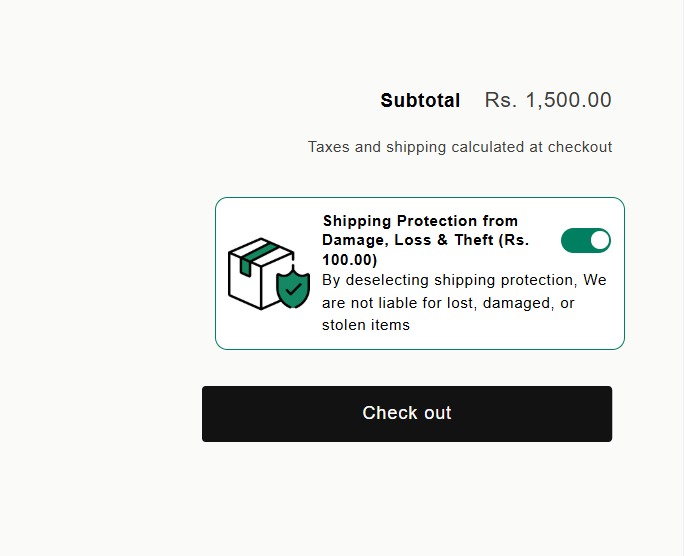
* **Check Your Storefront**: Navigate to your store’s frontend and place an order that meets the criteria of your insurance plan.
* **See the Widget**: The Insureful widget should now be visible on the order page, showing relevant insurance description and amount

<figure><img src="https://3268869593-files.gitbook.io/~/files/v0/b/gitbook-x-prod.appspot.com/o/spaces%2FTMi2PAaPTTOdVXrEeup0%2Fuploads%2FavPzhWCZnyeXBppY4tAA%2FScreenshot%202025-10-14%20163610.png?alt=media&amp;token=dc4dbd77-1a7f-4190-9c92-e14a6f7c0640" alt=""><figcaption></figcaption></figure>

By following these steps, you can easily display the Insureful widget to offer insurance coverage to your customers.


# Claims

Manage your claims efficiently by approving, canceling, or refunding claim requests. Follow the steps below to handle claims within the Insureful app.

### Accessing Claims

1. **Go to Claims Page**:
   * Navigate to the Claims page from the main menu.
   * Here, you can view all claim requests and their statuses.
2. **Check Claim Status**:
   * Filter claims by status (Pending or In-Progress) to focus on the claims that need your attention.

<figure><img src="https://3268869593-files.gitbook.io/~/files/v0/b/gitbook-x-prod.appspot.com/o/spaces%2FTMi2PAaPTTOdVXrEeup0%2Fuploads%2FjYIFPPNcJY3KMUbbZmsM%2Fclaim-order-list-normal.png?alt=media&amp;token=fefddeac-7246-4b64-a72c-724dc7bf5068" alt=""><figcaption><p>Overview of Claims Page</p></figcaption></figure>

### Managing Claims

#### Edit Claims

1. **Edit Claim**:
   * Click on the **"Edit"** button next to the claim you want to manage.
   * You will be redirected to the Order Claim Request Page.

<figure><img src="https://3268869593-files.gitbook.io/~/files/v0/b/gitbook-x-prod.appspot.com/o/spaces%2FTMi2PAaPTTOdVXrEeup0%2Fuploads%2Fvn15EEwJbM3IbAdMptYl%2Fclaim-list.png?alt=media&amp;token=62ad65e9-1bbd-41dd-b68d-0c15fd217f88" alt=""><figcaption><p>Find the Edit Button </p></figcaption></figure>

1. **Approve or Reject Claim**:
   * Review the reasons for the claim.
   * Click on the **"Claim Status"** or **"Fulfill Claim"** button to either approve or reject the claim.

<figure><img src="https://3268869593-files.gitbook.io/~/files/v0/b/gitbook-x-prod.appspot.com/o/spaces%2FTMi2PAaPTTOdVXrEeup0%2Fuploads%2F16abdMUEkLKG0TWfu6lT%2Fclaim-edit.png?alt=media&amp;token=d403baaf-4722-427a-923a-fb192e9d5cce" alt=""><figcaption><p>Find the Claim Status and Fulfill Claim</p></figcaption></figure>

#### Cancel Claim

1. **Cancel a Claim**:
   * Click on the **"Edit"** button next to the specific order in the claim menu.
   * Click on the **"Claim Status"** to cancel or reject the claim.

<figure><img src="https://3268869593-files.gitbook.io/~/files/v0/b/gitbook-x-prod.appspot.com/o/spaces%2FTMi2PAaPTTOdVXrEeup0%2Fuploads%2FIdZtO07ElEI3UZDSGW61%2Fcancel-claim.png?alt=media&amp;token=e7225309-435b-48bc-b36b-7818e08240b7" alt=""><figcaption><p>Popup for Cancel Claim</p></figcaption></figure>

#### Refund Claim

1. **Refund a Claim**:

   * Click on the **"Fulfill Claim"** button.

   <figure><img src="https://3268869593-files.gitbook.io/~/files/v0/b/gitbook-x-prod.appspot.com/o/spaces%2FTMi2PAaPTTOdVXrEeup0%2Fuploads%2FKvAazKNYmF7LCD5KmT24%2FScreenshot%202025-10-14%20164830.png?alt=media&amp;token=78b762ae-a5ef-4b44-8d93-649312c3212b" alt=""><figcaption></figcaption></figure>

* A **"Fulfill Claim"** popup will appear.
* Select the **"Refund by Amount"** option and insert the refund amount.
* Click on the **"Claim"** button.

<figure><img src="https://3268869593-files.gitbook.io/~/files/v0/b/gitbook-x-prod.appspot.com/o/spaces%2FTMi2PAaPTTOdVXrEeup0%2Fuploads%2FS5j60UVqzczHzjPUwhfF%2Freorder-2.png?alt=media&amp;token=225ff825-cbe9-4b12-9a3a-ae2ad20a8927" alt=""><figcaption><p>Popup for Refund Claim</p></figcaption></figure>

* You can either partially refund the amount or fully refund the claim amount to the customer as per your store policies.

#### Re-Order Claim

1. **Reorder a Claim**:

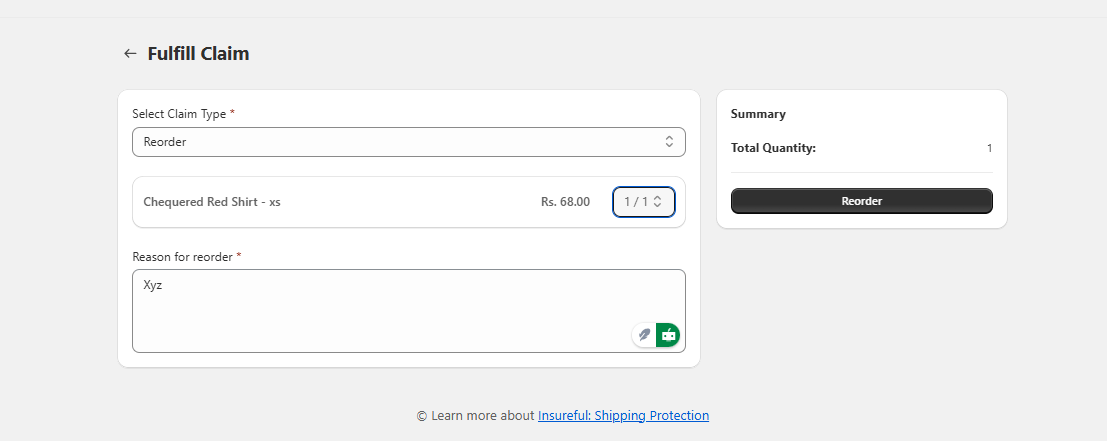
   * Click on the **"Fulfill Claim"** button and select the **"Re-order"** option from the dropdown menu.

   <figure><img src="https://3268869593-files.gitbook.io/~/files/v0/b/gitbook-x-prod.appspot.com/o/spaces%2FTMi2PAaPTTOdVXrEeup0%2Fuploads%2FbO95kiPp8U003q9EuRnf%2FScreenshot%202025-10-14%20164830.png?alt=media&amp;token=6a96fb3c-b109-4c28-86ba-cc3afdbb2b30" alt=""><figcaption></figcaption></figure>

* Insert the number of reordered hats that need to be reordered, or choose to reorder the entire order.

<figure><img src="https://3268869593-files.gitbook.io/~/files/v0/b/gitbook-x-prod.appspot.com/o/spaces%2FTMi2PAaPTTOdVXrEeup0%2Fuploads%2FfWQfwS3AESVmLxJh7zbZ%2FScreenshot%202025-10-14%20164840.png?alt=media&amp;token=bfe385bf-a570-45ba-bd44-97e4b982676b" alt=""><figcaption></figcaption></figure>

<figure><img src="https://3268869593-files.gitbook.io/~/files/v0/b/gitbook-x-prod.appspot.com/o/spaces%2FTMi2PAaPTTOdVXrEeup0%2Fuploads%2FWIzScE6yGpUSbAI5DX3s%2FScreenshot%202025-10-14%20164855.png?alt=media&amp;token=0e64eee2-6090-4f95-987d-5f87ab926a6b" alt=""><figcaption></figcaption></figure>

* Click on the **"Claim"** button after entering the required information.

#### Store Credit:

#### Go to **Fulfill Claim**

* Navigate to the **Fulfill Claim** section from your claim management dashboard. Click on the dropdown menu under **Select Claim Type** to view available options.

<figure><img src="https://3268869593-files.gitbook.io/~/files/v0/b/gitbook-x-prod.appspot.com/o/spaces%2FTMi2PAaPTTOdVXrEeup0%2Fuploads%2FlrJGSIWzSmanXWNK7yGJ%2FScreenshot%202025-10-14%20164830.png?alt=media&amp;token=77bd1c22-11ea-4249-b4e6-393c36ac551c" alt=""><figcaption></figcaption></figure>

* Choose **"Store Credit"** from the dropdown list to issue the customer a store credit for the claimed item. In the text box, provide a short explanation for issuing store credit.

<figure><img src="https://3268869593-files.gitbook.io/~/files/v0/b/gitbook-x-prod.appspot.com/o/spaces%2FTMi2PAaPTTOdVXrEeup0%2Fuploads%2Fw94wSgXRsrPZa9pCBKMu%2FScreenshot%202025-10-14%20170122.png?alt=media&amp;token=1bd29af2-0525-4823-a0ee-15eb8522c5eb" alt=""><figcaption></figcaption></figure>

* After entering the necessary details, click **Add Store Credit** to complete the process.

### Claim Statuses in Request List

* **Requested**: The customer has requested a claim.
* **In Progress**: The customer service team is reviewing the claim.
* **Approved**: The claim is valid; the merchandise will be reordered, or the amount will be fully refunded to the customer.
* **Partially Approved**: This applies to multiple orders in a single shipment, meaning only part of the claim was valid and approved.
* **Cancel**: The claim is denied due to false claims or improper activity.

### Allowing Claims from the Front End

1. **Enable Claim Form**:
   * Go to theme customization from store themes.
   * Add the Insureful Claim Form extension to the page where you want to display the claim form.

<figure><img src="https://3268869593-files.gitbook.io/~/files/v0/b/gitbook-x-prod.appspot.com/o/spaces%2FTMi2PAaPTTOdVXrEeup0%2Fuploads%2FTydT75KJqhAKBQP7K2gg%2FC7.png?alt=media&amp;token=4b7fcb06-6f20-4253-92ca-e097dadc902f" alt=""><figcaption><p>Enable Claim Form</p></figcaption></figure>

1. **Customer Claim Submission**:
   * Customers can enter the email ID used to place the order, the order number, and the reason for the claim.
   * After filling in the details, they can submit the claim.

<figure><img src="https://3268869593-files.gitbook.io/~/files/v0/b/gitbook-x-prod.appspot.com/o/spaces%2FTMi2PAaPTTOdVXrEeup0%2Fuploads%2FSWjXswbJn2U9b3lTzve3%2FC8.png?alt=media&amp;token=62b2f5fa-12f3-4b99-af3c-af7fd2ae9a71" alt=""><figcaption><p>Insureful Claim Page</p></figcaption></figure>

<figure><img src="https://3268869593-files.gitbook.io/~/files/v0/b/gitbook-x-prod.appspot.com/o/spaces%2FTMi2PAaPTTOdVXrEeup0%2Fuploads%2FuG44ARDRoNWl1Z4BzKma%2FC9.png?alt=media&amp;token=d521dbff-dd0a-4810-8dc4-5819cb058767" alt=""><figcaption><p>Find the Claim button</p></figcaption></figure>

<figure><img src="https://3268869593-files.gitbook.io/~/files/v0/b/gitbook-x-prod.appspot.com/o/spaces%2FTMi2PAaPTTOdVXrEeup0%2Fuploads%2F3dHlzTcJL5bxrxeJq28s%2F10.png?alt=media&amp;token=db6b4b76-99c0-45fc-b9db-2e91d5386382" alt=""><figcaption><p>Find where to Insert reason , add the images of the product and button to submit to request for claim</p></figcaption></figure>

1. **Email Notifications**:
   * Both the admin and the customer will receive email notifications for the claim request.


# Insurance  Claim Page

To add the Insureful Claim Page to your store's frontend, follow these steps:

### Steps to set up claim page&#x20;

1. Click on the Home page.
2. Click on **Pages**&#x20;

<figure><img src="https://3268869593-files.gitbook.io/~/files/v0/b/gitbook-x-prod.appspot.com/o/spaces%2FTMi2PAaPTTOdVXrEeup0%2Fuploads%2FfaG3pyg8ahKE1Doutzmg%2FScreenshot%202025-09-23%20134614.png?alt=media&amp;token=5830b60d-7853-4eef-8095-09f80f987de4" alt=""><figcaption></figcaption></figure>

3. Go to create a template.
4. Set up the Name and Based on (if required) section.
5. Then click on create template.

<figure><img src="https://3268869593-files.gitbook.io/~/files/v0/b/gitbook-x-prod.appspot.com/o/spaces%2FTMi2PAaPTTOdVXrEeup0%2Fuploads%2FioTKJ9a5ZinL1KwALjpV%2FScreenshot%202025-09-23%20134654.png?alt=media&amp;token=cba547a3-a5f7-4825-8313-6701ec134b51" alt=""><figcaption></figcaption></figure>

6. Go to the add section, then go to template, and then add section.
7. Click apps and select **the Insureful Claim page.** &#x20;

<figure><img src="https://3268869593-files.gitbook.io/~/files/v0/b/gitbook-x-prod.appspot.com/o/spaces%2FTMi2PAaPTTOdVXrEeup0%2Fuploads%2F7cGr0RQVbN9t20EkGYG1%2FScreenshot%202025-09-23%20134718.png?alt=media&amp;token=2af766ee-63eb-40bd-a706-9f0b79aacd56" alt=""><figcaption></figcaption></figure>

**Step 1: Open the Claim Page**\
Go to the **Submit Order Claim** page on the website.

<figure><img src="https://3268869593-files.gitbook.io/~/files/v0/b/gitbook-x-prod.appspot.com/o/spaces%2FTMi2PAaPTTOdVXrEeup0%2Fuploads%2F01xBodLZhj7H6eNqOkIZ%2FScreenshot%202025-10-11%20132706.png?alt=media&amp;token=8e3f2c6f-a42a-4408-9b37-b446270e85cf" alt=""><figcaption></figcaption></figure>

**Step 2: Enter Your Email Address**

* In the field labeled **“Enter your email,”** type your registered email address.
* This is important because all claim updates and confirmations will be sent to this email.

<figure><img src="https://3268869593-files.gitbook.io/~/files/v0/b/gitbook-x-prod.appspot.com/o/spaces%2FTMi2PAaPTTOdVXrEeup0%2Fuploads%2FIlpEc7AxFYxeOwLfABPC%2FScreenshot%202025-10-11%20132743.png?alt=media&amp;token=f2a03796-ad06-45a1-aae3-de780648d2f5" alt=""><figcaption></figcaption></figure>

**Step 3: Enter Your Order Number**

* In the next field labeled **“Enter Order Number,”** type your order number exactly as it appears on your invoice or confirmation email.
* Make sure there are no typing errors.

**Step 4: Submit the Form**

* Once both fields are filled in, click the **“SUBMIT”** button.
* Your claim will be submitted for review, and you will receive a confirmation message or email shortly after.

<figure><img src="https://3268869593-files.gitbook.io/~/files/v0/b/gitbook-x-prod.appspot.com/o/spaces%2FTMi2PAaPTTOdVXrEeup0%2Fuploads%2Fk7HBgQl9JXJ4xiUlcyHR%2Fimage.png?alt=media&amp;token=d8491e5d-0945-403d-828e-d74adf782297" alt=""><figcaption></figcaption></figure>

**Step 5: After clicking submit.**

**Step 6: Select the product** you want to claim. Tick the small checkbox in the **Select** column next to that product.

* If needed, change the **Claim Quantity** to the number of items you are claiming.

**Step 7: Write the reason** for your claim: Click the **Reason** box (marked with \*) and type a short, clear reason (for example, “Wrong size,” “Item damaged,” or “Missing parts”).

<figure><img src="https://3268869593-files.gitbook.io/~/files/v0/b/gitbook-x-prod.appspot.com/o/spaces%2FTMi2PAaPTTOdVXrEeup0%2Fuploads%2F3xry9Q3YfBUnfonqCVmb%2Fimage.png?alt=media&amp;token=54b39950-5b77-4fbb-96de-9ed140d5bc6b" alt=""><figcaption></figcaption></figure>

**Step 8: Upload images (required)**: click **Choose Files** / **Insert image** under **Upload images** and pick one or more photos that show the problem.

* These images are required—you will not be able to submit the claim without at least one image.
* Good photos: clear close-ups of damage, packaging, and any label or defect.

<figure><img src="https://3268869593-files.gitbook.io/~/files/v0/b/gitbook-x-prod.appspot.com/o/spaces%2FTMi2PAaPTTOdVXrEeup0%2Fuploads%2F8aoCYFUEfxmPFVjPDLsG%2Fimage.png?alt=media&amp;token=b6ac19a7-c82e-43c5-a5ad-21cd695479df" alt=""><figcaption></figcaption></figure>

**Step 9: Submit the claim**: click the **Claim order** button to send your claim.

**Step 10: Check confirmation**: after submitting, you should see a confirmation or the claim status (for example, “Pending”). Keep a note of the order/claim number and your uploaded images.


# Manage Email  Templates

By using email templates, you can send confirmation emails to customers as well as notifications to admins. Here's how to manage and customize these templates.

#### Edit Email Templates

1. **Access Email Templates**:
   * Go to the email templates section in the Insureful app.

<figure><img src="https://3268869593-files.gitbook.io/~/files/v0/b/gitbook-x-prod.appspot.com/o/spaces%2FTMi2PAaPTTOdVXrEeup0%2Fuploads%2F0o3n7l90f9ju3xj0pTe7%2Femail-templates-list.png?alt=media&amp;token=0d6a75fb-757d-4c3d-8611-9a2a27981d5f" alt=""><figcaption><p>Email Templates List</p></figcaption></figure>

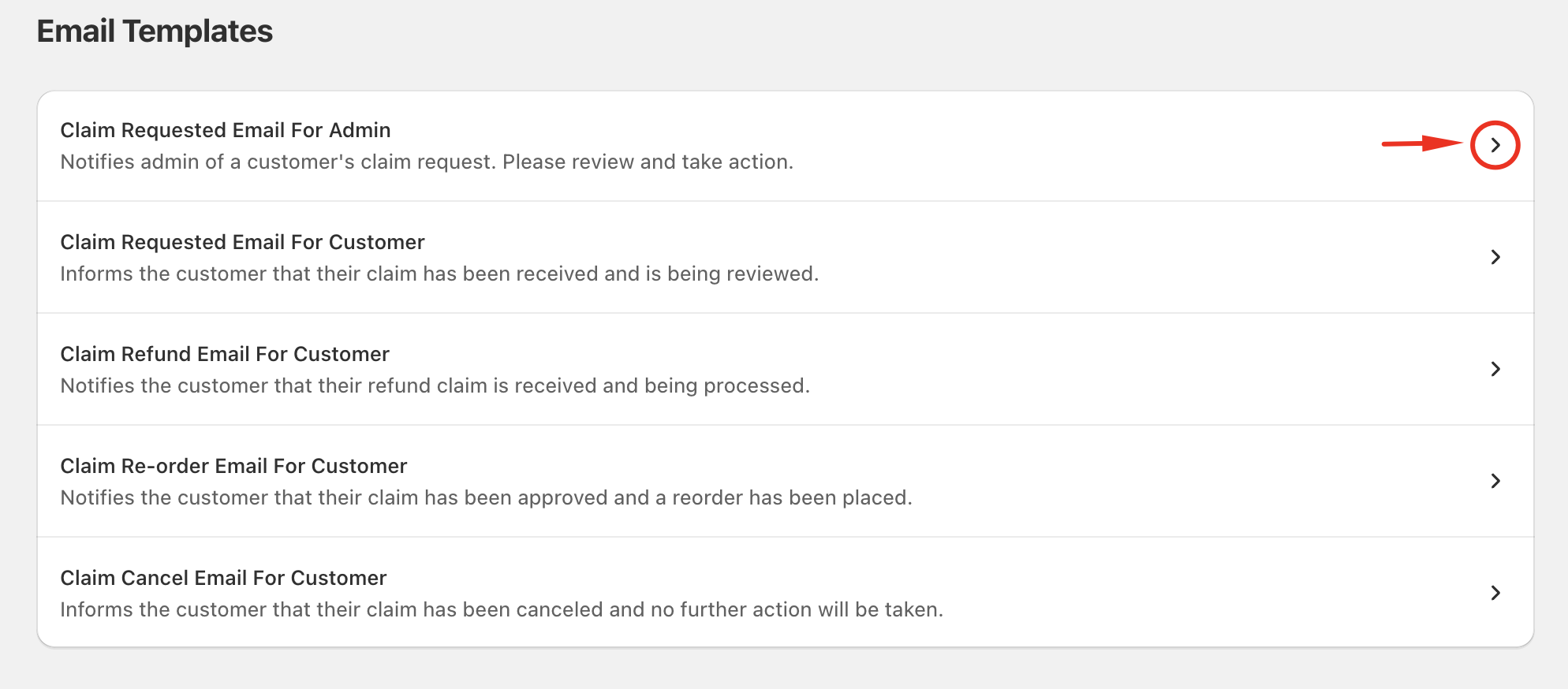
2. **Edit Email Subject and Content**:

* Click on the **Edit** button next to the email template you want to modify.
* You will be redirected to the content page.

<figure><img src="https://3268869593-files.gitbook.io/~/files/v0/b/gitbook-x-prod.appspot.com/o/spaces%2FTMi2PAaPTTOdVXrEeup0%2Fuploads%2FFjmVjNLkGoTkC3vpW4HW%2Femail-template-edit-button.png?alt=media&amp;token=65e32df3-78d4-4498-b73f-7311fad749fa" alt=""><figcaption><p>Find the Edit Botton</p></figcaption></figure>

3. **Customize Email**:

* Edit the email subject and content in your desired format.
* Use the provided tags to format your email content effectively.

4. **Save Changes**:

* After editing, click on the **Update** button to save your changes.

### Available Email Templates

The app provides five types of email templates for both admin and customer notifications:

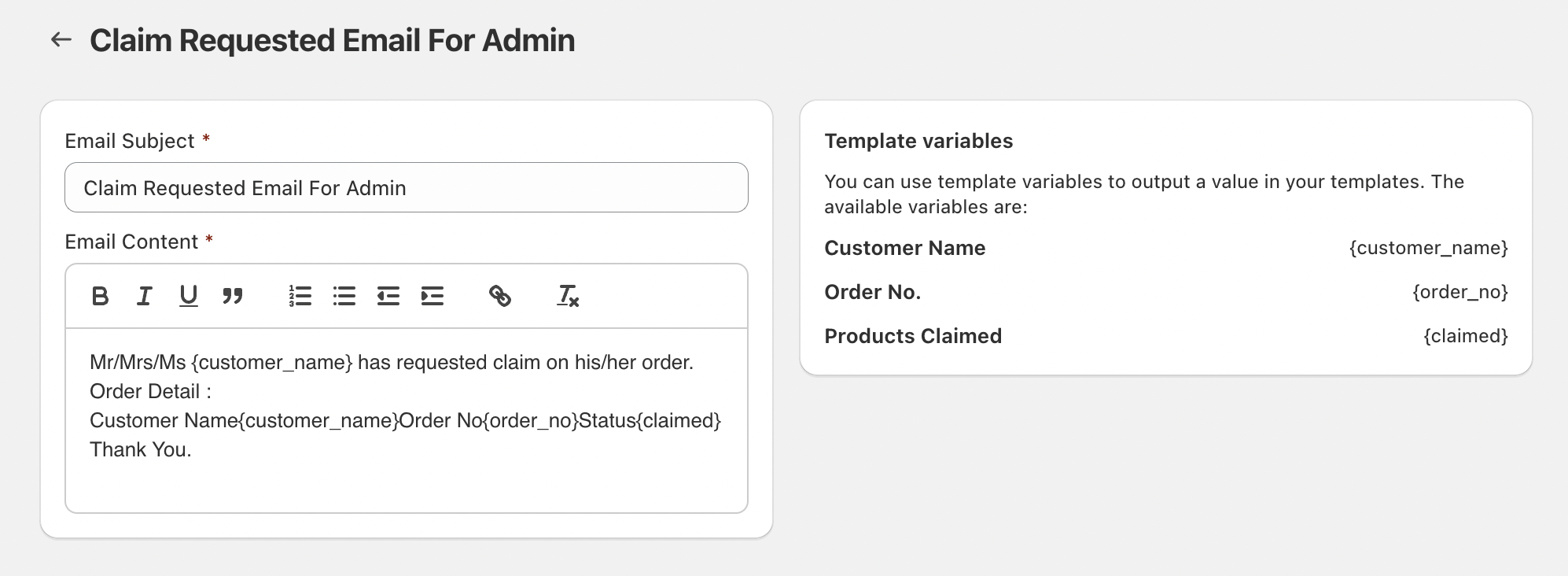
1. **Claim Request Template for Admin**:
   * **Purpose**: Sent to admin when a customer requests a claim on their order.

<figure><img src="https://3268869593-files.gitbook.io/~/files/v0/b/gitbook-x-prod.appspot.com/o/spaces%2FTMi2PAaPTTOdVXrEeup0%2Fuploads%2FpNhQPGqmdc9jEDcPYyE4%2Fedit-email-1.png?alt=media&amp;token=116af3b4-caae-499d-8a8a-e8e08a159059" alt=""><figcaption><p>Claim Request Template</p></figcaption></figure>

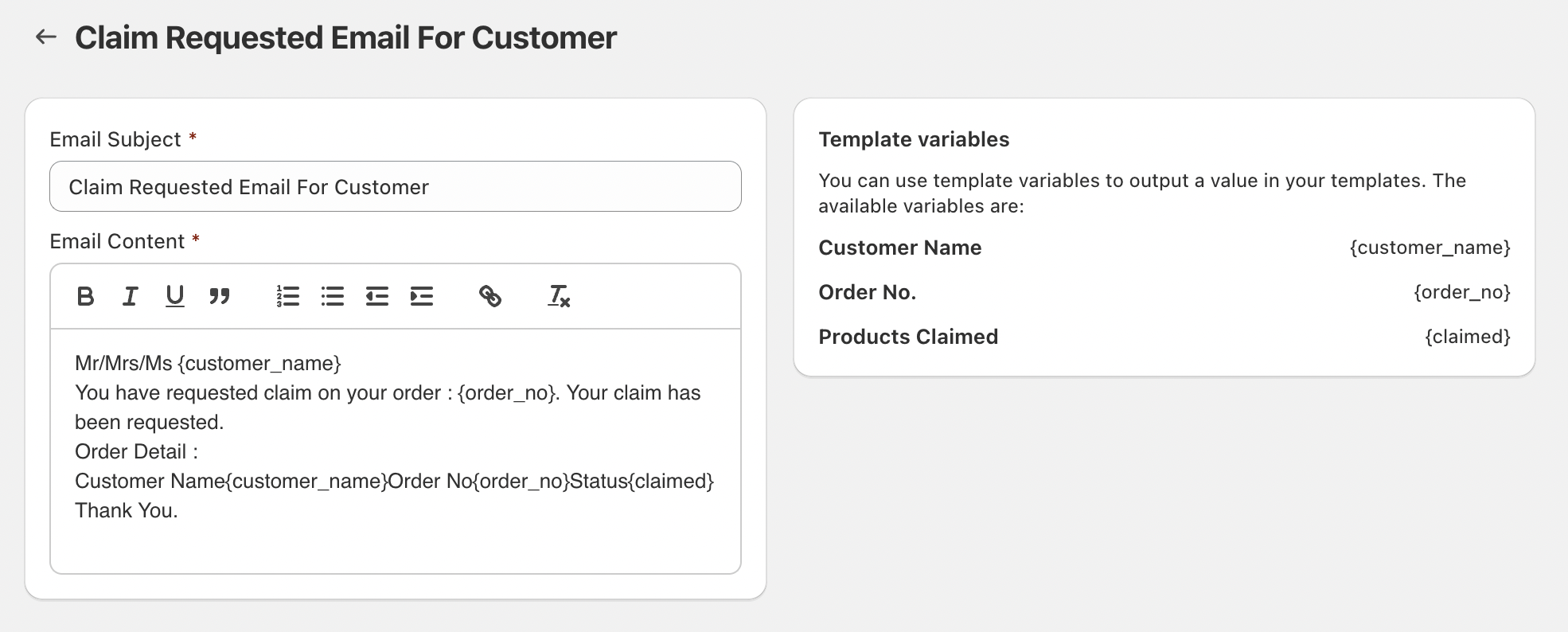
2. **Claim Requested Email for Customer**:

* **Purpose**: Sent to the customer to confirm their claim request.

<figure><img src="https://3268869593-files.gitbook.io/~/files/v0/b/gitbook-x-prod.appspot.com/o/spaces%2FTMi2PAaPTTOdVXrEeup0%2Fuploads%2FoHhsy83Em9LKvpgfonbM%2Femail-2.png?alt=media&amp;token=fac9216b-3f5c-44c1-b00b-6511cca5c804" alt=""><figcaption><p>Claim Requested Template</p></figcaption></figure>

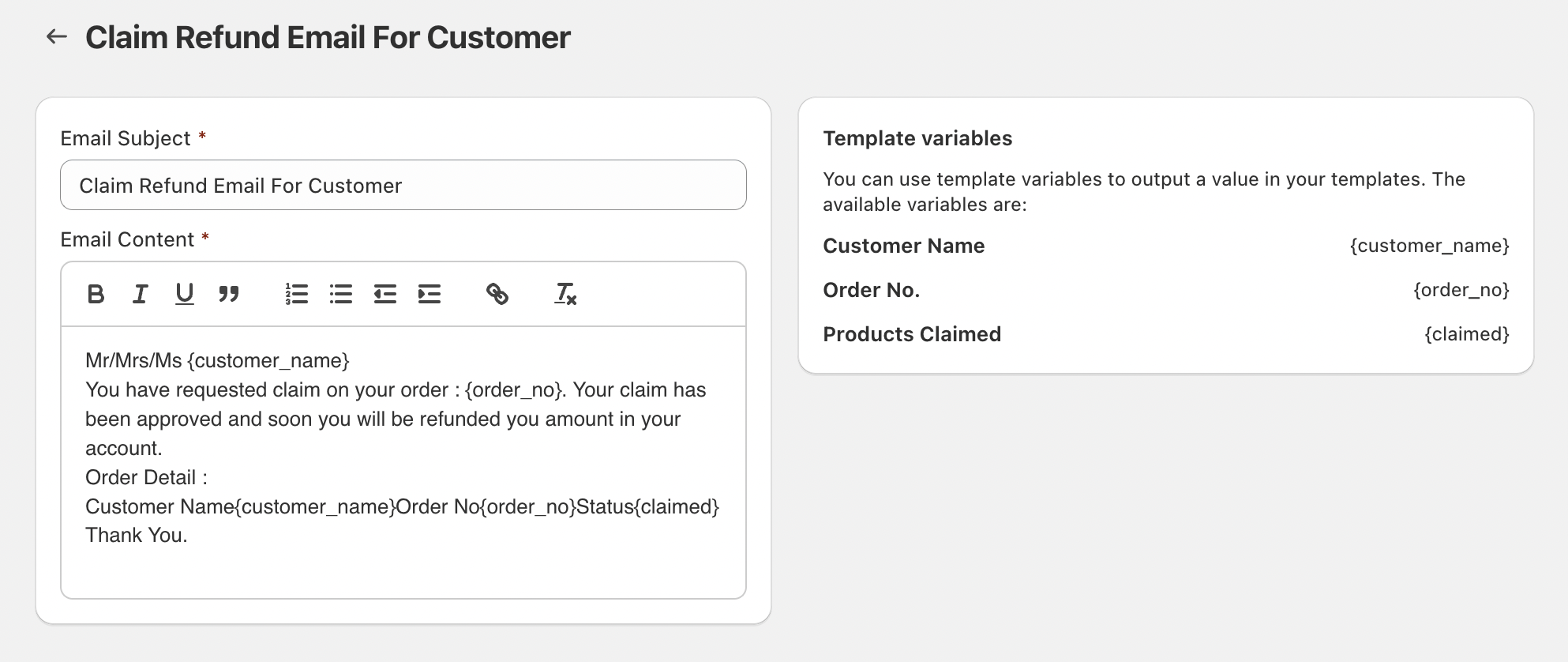
3. **Claim Refund Email for Customer**:

* **Purpose**: Sent to the customer when their claim request for a refund is approved by the admin.

<figure><img src="https://3268869593-files.gitbook.io/~/files/v0/b/gitbook-x-prod.appspot.com/o/spaces%2FTMi2PAaPTTOdVXrEeup0%2Fuploads%2FW9VwDsMagrI6wrtL4foy%2Femail-3.png?alt=media&amp;token=2bd4ea7b-f4dc-4589-b112-8f815abdb516" alt=""><figcaption><p>Refund Templates</p></figcaption></figure>

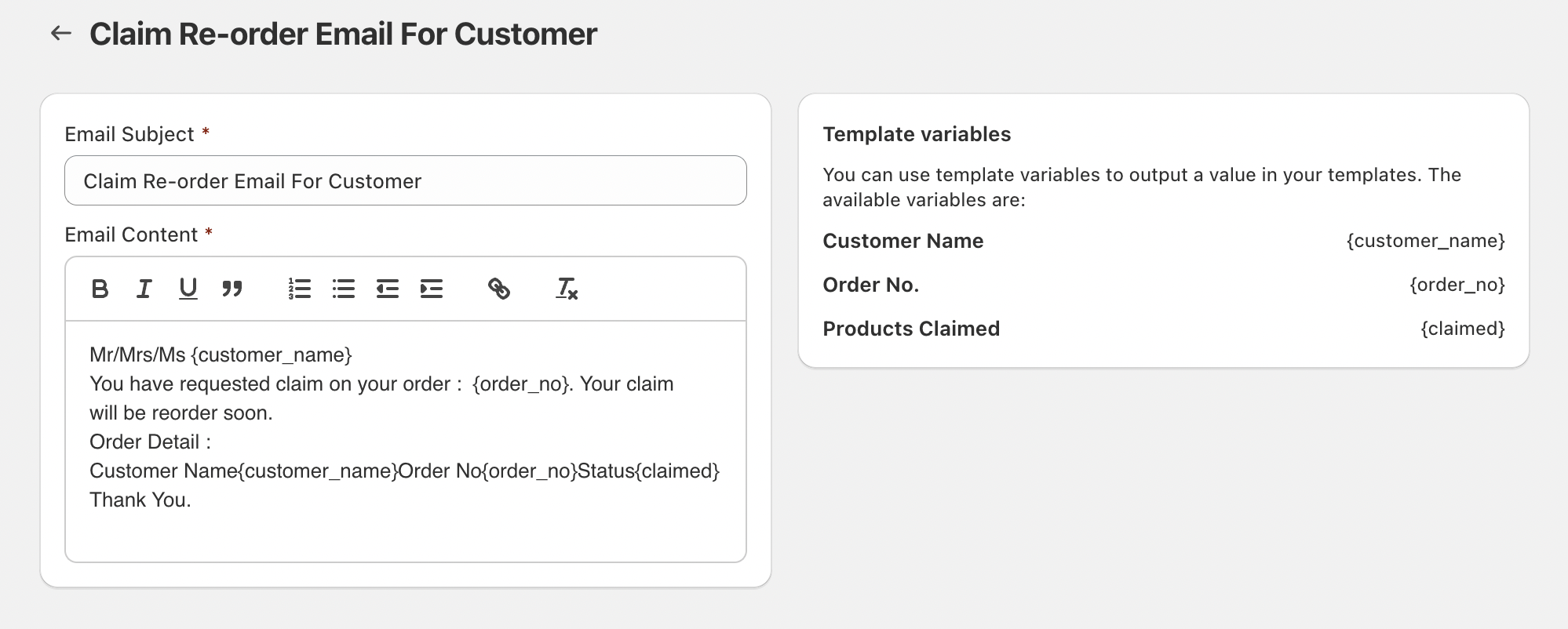
4. **Claim Re-Order Email for Customer**:

* **Purpose**: Sent to the customer when their claim request for a reorder is approved by the admin.

<figure><img src="https://3268869593-files.gitbook.io/~/files/v0/b/gitbook-x-prod.appspot.com/o/spaces%2FTMi2PAaPTTOdVXrEeup0%2Fuploads%2F3c29TmA0ktAN2OjC8kYF%2Femail-4.png?alt=media&amp;token=4802e024-1822-43e3-9f8f-b2a2deb87ee9" alt=""><figcaption><p>Re-Order Template </p></figcaption></figure>

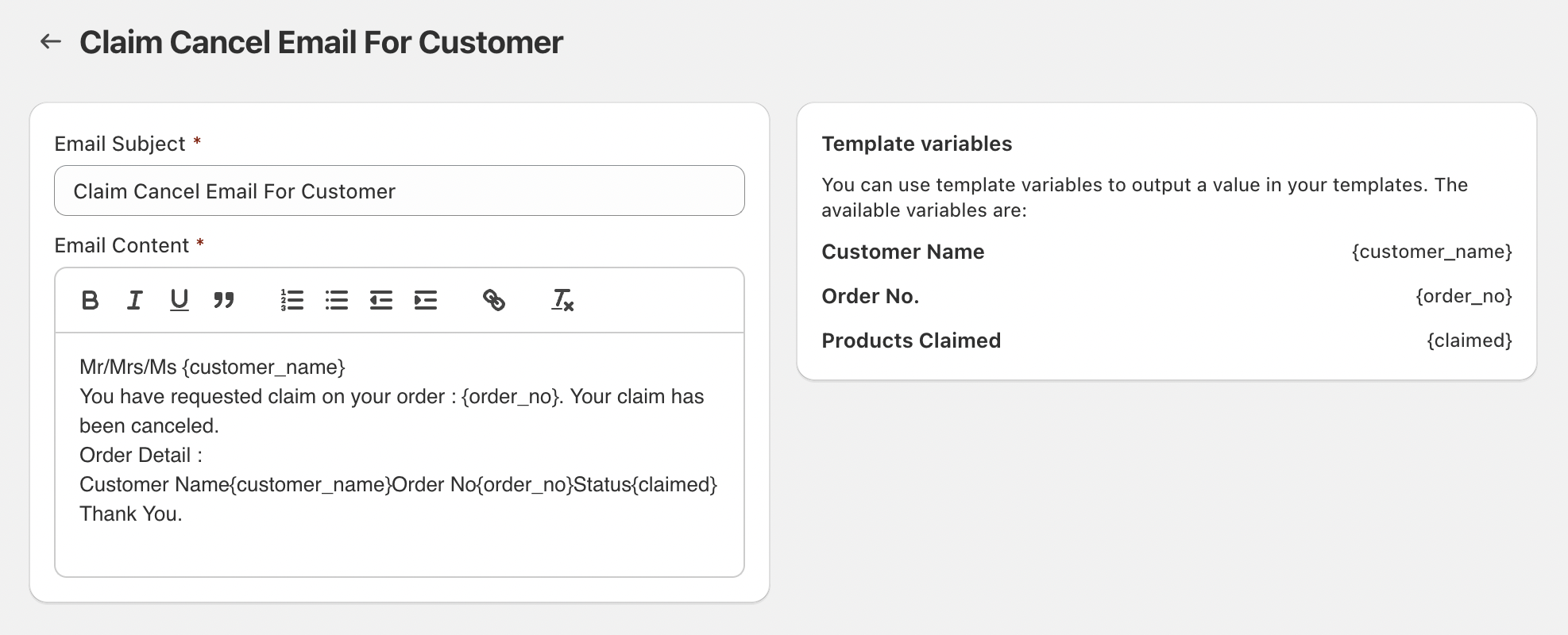
5. **Claim Cancel Email for Customer**:

* **Purpose**: Sent to the customer when their claim request is canceled due to unfair means on the customer's part.

<figure><img src="https://3268869593-files.gitbook.io/~/files/v0/b/gitbook-x-prod.appspot.com/o/spaces%2FTMi2PAaPTTOdVXrEeup0%2Fuploads%2FWJnglFj3KDENGaBXXyEt%2Femail-5.png?alt=media&amp;token=d06cdb5a-f76c-45eb-bb90-af2752cc68a5" alt=""><figcaption><p>Claim Cancel Template </p></figcaption></figure>

By following these steps, you can easily manage and customize your email templates, ensuring effective communication with your customers and admins.


# General setting

### General Setting: Here you can customize your widget. And you can change the style and look of the product.

<figure><img src="https://3268869593-files.gitbook.io/~/files/v0/b/gitbook-x-prod.appspot.com/o/spaces%2FTMi2PAaPTTOdVXrEeup0%2Fuploads%2FMiK4Tv0X47T2SbBRDMvr%2Funknown.png?alt=media&amp;token=f764fd51-1b4f-4b4f-8587-e385a3251c39" alt=""><figcaption></figcaption></figure>

**Step 1**: **App status—Here you can change the app status to activate/deactivate.**

**Step 2**: **Auto add to cart—With the help of these, you can select if you want to auto add to cart or not.**

Step 3: **Fulfillment configuration – Here you have two options either you want it to**

* Immediately after purchase
* Manual

**Step 4: Insurance product image. – Here you can change the image. And you can upload your own.**&#x20;

**Step 5**: **Order Tag Setting—With the help of this feature, you can add any tag to the order if you want to differentiate your order.**

<figure><img src="https://3268869593-files.gitbook.io/~/files/v0/b/gitbook-x-prod.appspot.com/o/spaces%2FTMi2PAaPTTOdVXrEeup0%2Fuploads%2Fg5jciKrs7NyrD54hLAe0%2Funknown.png?alt=media&amp;token=53c01fff-aaf6-4bd5-9426-19b7c3dfee26" alt=""><figcaption></figcaption></figure>

**Step 6**: **Claim setting—here you can make the image mandatory or update the claim reasons with a dropdown or text box for detailed input.**

* “Use this option to specify whether an image is required when submitting a claim order.”

<figure><img src="https://3268869593-files.gitbook.io/~/files/v0/b/gitbook-x-prod.appspot.com/o/spaces%2FTMi2PAaPTTOdVXrEeup0%2Fuploads%2FlUwSEXzBTuCmilgbDfA5%2Funknown.png?alt=media&amp;token=a33da096-33e4-43a4-9564-d939521feb56" alt=""><figcaption></figcaption></figure>

* “If you enable the text-area feature, customers can provide the reason in their own words.”

<figure><img src="https://3268869593-files.gitbook.io/~/files/v0/b/gitbook-x-prod.appspot.com/o/spaces%2FTMi2PAaPTTOdVXrEeup0%2Fuploads%2FZw4lQg2iVUHunK2OAVOD%2Funknown.png?alt=media&amp;token=6920bb35-a35a-4ad5-8ba6-ddbfd977fa28" alt=""><figcaption></figcaption></figure>

* If you enable the dropdown option, customers can select a predefined reason from the list, as shown in the image.

**Step 7: Exclude Digital Products – Enable this option if you want to prevent digital products from being insured**

**Step 8**: **Custom style—add styles here instead of adding them to theme files. You can add custom CSS here.**

<figure><img src="https://3268869593-files.gitbook.io/~/files/v0/b/gitbook-x-prod.appspot.com/o/spaces%2FTMi2PAaPTTOdVXrEeup0%2Fuploads%2FeVzEdvtsC4wJFyCf94RD%2Funknown.png?alt=media&amp;token=51e644d6-7b16-4f34-b7ac-ae7032718c01" alt=""><figcaption></figcaption></figure>

**Step 9: Selectors—Specify CSS selectors to connect the widget with your store elements.**

* Use the Selectors configuration to define the CSS selectors required for integrating the widget with your store’s frontend elements. These selectors ensure that the widget is correctly positioned, can detect checkout actions, and can access the cart’s pricing information.
* Widget Target\
  Specify the CSS selector for the element where the widget should be rendered. The widget will be injected into this location on the storefront.
* Checkout Button\
  Provide the CSS selector for the store’s checkout button. This allows the widget to monitor when a customer initiates the checkout process and trigger its functionality accordingly.
* Cart Total Text\
  Enter the CSS selector for the element that displays the cart’s total amount. The widget uses this selector to read and reflect accurate pricing details during the customer’s interaction.

&#x20;


# Cart Widget

#### **Cart Widget**

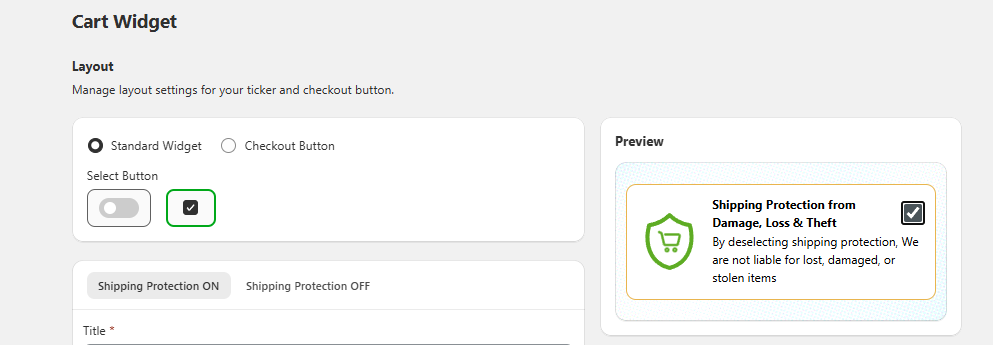
**In the cart widget, you got two types of Insureful widgets.**\
**1. Standard Widget.**\
**2. Checkout Button.**

**Layout: Standard widget.**

<figure><img src="https://3268869593-files.gitbook.io/~/files/v0/b/gitbook-x-prod.appspot.com/o/spaces%2FTMi2PAaPTTOdVXrEeup0%2Fuploads%2F29ps1iwut12pBLlONNdv%2FScreenshot%202025-12-25%20155002.png?alt=media&amp;token=223842c7-ad24-49bf-94cc-7099dbc4e455" alt=""><figcaption></figcaption></figure>

***

**Layout: Checkout Button.**

<figure><img src="https://3268869593-files.gitbook.io/~/files/v0/b/gitbook-x-prod.appspot.com/o/spaces%2FTMi2PAaPTTOdVXrEeup0%2Fuploads%2FoqIddBWC5s6nkhGMd3Ff%2FScreenshot%202025-12-25%20154944.png?alt=media&amp;token=d1a153a9-2dcd-4831-872b-9ffdd92073ac" alt=""><figcaption></figcaption></figure>

&#x20;

&#x20;


# Standard Widget

#### **Cart Widget**

**Layout: Standard widget.**

<figure><img src="https://3268869593-files.gitbook.io/~/files/v0/b/gitbook-x-prod.appspot.com/o/spaces%2FTMi2PAaPTTOdVXrEeup0%2Fuploads%2F29ps1iwut12pBLlONNdv%2FScreenshot%202025-12-25%20155002.png?alt=media&amp;token=223842c7-ad24-49bf-94cc-7099dbc4e455" alt=""><figcaption></figcaption></figure>

***

Manage text for shipping protection ON/OFF:

<figure><img src="https://3268869593-files.gitbook.io/~/files/v0/b/gitbook-x-prod.appspot.com/o/spaces%2FTMi2PAaPTTOdVXrEeup0%2Fuploads%2FKBAd0fT2VPvgOoF8TKl8%2Funknown.png?alt=media&amp;token=ae9fd7bf-0dc7-4ede-bec8-3849d9ed436c" alt=""><figcaption></figcaption></figure>

* Shipping protection on—Set up the title and description when the insurance toggle is on or off.
* &#x20;Here you have predefined text, but you can set your own.

***

<figure><img src="https://3268869593-files.gitbook.io/~/files/v0/b/gitbook-x-prod.appspot.com/o/spaces%2FTMi2PAaPTTOdVXrEeup0%2Fuploads%2FjTvU2u4LCJbiQckugKBh%2Funknown.png?alt=media&amp;token=b17779bc-f7d2-405c-9004-e038b27b100a" alt=""><figcaption></figcaption></figure>

#### Insurance Icon:

* From this section you have multiple default icons.
* Also, you have the option to upload your own icon.
* &#x20;In the preview section you can see how it would look after the changes.

***

<figure><img src="https://3268869593-files.gitbook.io/~/files/v0/b/gitbook-x-prod.appspot.com/o/spaces%2FTMi2PAaPTTOdVXrEeup0%2Fuploads%2F6AwClhrZypJOYHYrOn7w%2Funknown.png?alt=media&amp;token=57358cc0-11f9-4da2-85fe-12e7a8306114" alt=""><figcaption></figcaption></figure>

Select the insurance widget template—the selected template will be displayed above the checkout button on the storefront. A real-time preview of the template is also available in the preview section.

You have multiple templates here, which you can change as your choice.

***

Layout and style settings—

1\. Space

* The changes you can make&#x20;

Show Icon, Icon Size, Icon Corner Radius, Inside Space, Outside Spacing<br>

<figure><img src="https://3268869593-files.gitbook.io/~/files/v0/b/gitbook-x-prod.appspot.com/o/spaces%2FTMi2PAaPTTOdVXrEeup0%2Fuploads%2FJPf0PP42qiBCyqH6veDS%2Funknown.png?alt=media&amp;token=5aa5a1e4-c1d7-4c60-a1c9-0b5ac4f56f33" alt=""><figcaption></figcaption></figure>

2\. Font Size

The Font Size tab controls the typography used within the widget.

Heading Font Size\
Adjust the font size for the main heading text.

Subheading Font Size\
Set the font size for secondary or descriptive text within the widget.

<figure><img src="https://3268869593-files.gitbook.io/~/files/v0/b/gitbook-x-prod.appspot.com/o/spaces%2FTMi2PAaPTTOdVXrEeup0%2Fuploads%2FS9jr0V0v8JKNsTgR7fHT%2Funknown.png?alt=media&amp;token=3870932f-bf86-42f5-a118-35de7f2bea2b" alt=""><figcaption></figcaption></figure>

3\. Container

The Container tab allows you to modify the widget’s outer container design.

Border Radius\
Set the radius of the widget’s container corners to achieve square or rounded styling.

Border Size\
Configure the thickness of the widget’s border.

<figure><img src="https://3268869593-files.gitbook.io/~/files/v0/b/gitbook-x-prod.appspot.com/o/spaces%2FTMi2PAaPTTOdVXrEeup0%2Fuploads%2F8AJKIdBRIffJYzyxkwiQ%2Funknown.png?alt=media&amp;token=71a586f4-20ab-4b57-8a90-70e71051d3f5" alt=""><figcaption></figcaption></figure>

4\. Color

Use the Color tab to define the widget’s color palette, ensuring consistency with your store’s theme.

* The changes you can make&#x20;

Heading Color, Subheading Color, Border Color, Background Color,  Switch On Color,  Switch Off Color

&#x20;

&#x20;


# Checkout Button

1\. Layout: **Checkout Button.**

<figure><img src="https://3268869593-files.gitbook.io/~/files/v0/b/gitbook-x-prod.appspot.com/o/spaces%2FTMi2PAaPTTOdVXrEeup0%2Fuploads%2FoqIddBWC5s6nkhGMd3Ff%2FScreenshot%202025-12-25%20154944.png?alt=media&amp;token=d1a153a9-2dcd-4831-872b-9ffdd92073ac" alt=""><figcaption></figcaption></figure>

***

Click on the "show advance settings" button.

<figure><img src="https://3268869593-files.gitbook.io/~/files/v0/b/gitbook-x-prod.appspot.com/o/spaces%2FTMi2PAaPTTOdVXrEeup0%2Fuploads%2Fozb2oiTacowTZFHdeP65%2FScreenshot%202025-12-25%20155617.png?alt=media&amp;token=679d0cd6-0e68-4f79-a103-399e3b1b7e5d" alt=""><figcaption></figcaption></figure>

From here, you can choose to display the Insureful widget only on the product page.

* Here, you can choose to use the checkout button, the standard widget, or select none.\
  Any changes you make will apply only to the product page.

***

**2. Button Text:**

<figure><img src="https://3268869593-files.gitbook.io/~/files/v0/b/gitbook-x-prod.appspot.com/o/spaces%2FTMi2PAaPTTOdVXrEeup0%2Fuploads%2FClyZZPG4pCfFnHfxB0qD%2Fimage.png?alt=media&amp;token=41916374-5778-4e8d-8f2e-eb4926b71c8f" alt=""><figcaption></figcaption></figure>

* Here you can change the button text.

***

3. **Container:**

<figure><img src="https://3268869593-files.gitbook.io/~/files/v0/b/gitbook-x-prod.appspot.com/o/spaces%2FTMi2PAaPTTOdVXrEeup0%2Fuploads%2FPVUP8rKHUOIQJHElJQ7g%2Fimage.png?alt=media&amp;token=25523ed1-0a68-42fe-b3bd-5d8c00960d1e" alt=""><figcaption></figcaption></figure>

* You can change the appearance of the button from here.

***

4. **Button:**

<figure><img src="https://3268869593-files.gitbook.io/~/files/v0/b/gitbook-x-prod.appspot.com/o/spaces%2FTMi2PAaPTTOdVXrEeup0%2Fuploads%2FTGn0faQdr9qsaYf7P65q%2Fimage.png?alt=media&amp;token=a9946fe6-7239-4125-a44a-30dddad9f740" alt=""><figcaption></figcaption></figure>

* Here you can set up the app icon; you can change its design also. If you don't want an icon, you can remove the icon.
* You can also change the button text alignment.

***

5. **Typography:**

<figure><img src="https://3268869593-files.gitbook.io/~/files/v0/b/gitbook-x-prod.appspot.com/o/spaces%2FTMi2PAaPTTOdVXrEeup0%2Fuploads%2FO3CISdbIlpvvYS5fKDg9%2Fimage.png?alt=media&amp;token=9e78c814-47f5-41ab-ae02-c596a45a7dc8" alt=""><figcaption></figcaption></figure>

* From here you can change the size of the text inside the button.

***

6. **Color Setting:**

<figure><img src="https://3268869593-files.gitbook.io/~/files/v0/b/gitbook-x-prod.appspot.com/o/spaces%2FTMi2PAaPTTOdVXrEeup0%2Fuploads%2FNGt1peF3KyPXwUvCWFa1%2Fimage.png?alt=media&amp;token=7a656bce-833c-406d-bbb5-64bb432e2edf" alt=""><figcaption></figcaption></figure>

* You can change the style setting of the checkout button.


# Copy of Cart Widget

#### **Cart Widget**

**Layout: Standard widget.**

<figure><img src="https://3268869593-files.gitbook.io/~/files/v0/b/gitbook-x-prod.appspot.com/o/spaces%2FTMi2PAaPTTOdVXrEeup0%2Fuploads%2F29ps1iwut12pBLlONNdv%2FScreenshot%202025-12-25%20155002.png?alt=media&amp;token=223842c7-ad24-49bf-94cc-7099dbc4e455" alt=""><figcaption></figcaption></figure>

**Layout: Checkout Button.**

<figure><img src="https://3268869593-files.gitbook.io/~/files/v0/b/gitbook-x-prod.appspot.com/o/spaces%2FTMi2PAaPTTOdVXrEeup0%2Fuploads%2FoqIddBWC5s6nkhGMd3Ff%2FScreenshot%202025-12-25%20154944.png?alt=media&amp;token=d1a153a9-2dcd-4831-872b-9ffdd92073ac" alt=""><figcaption></figcaption></figure>

Manage text for shipping protection ON/OFF:

<figure><img src="https://3268869593-files.gitbook.io/~/files/v0/b/gitbook-x-prod.appspot.com/o/spaces%2FTMi2PAaPTTOdVXrEeup0%2Fuploads%2FKBAd0fT2VPvgOoF8TKl8%2Funknown.png?alt=media&amp;token=ae9fd7bf-0dc7-4ede-bec8-3849d9ed436c" alt=""><figcaption></figcaption></figure>

* Shipping protection on—Set up the title and description when the insurance toggle is on or off.
* &#x20;Here you have predefined text, but you can set your own.

<figure><img src="https://3268869593-files.gitbook.io/~/files/v0/b/gitbook-x-prod.appspot.com/o/spaces%2FTMi2PAaPTTOdVXrEeup0%2Fuploads%2FjTvU2u4LCJbiQckugKBh%2Funknown.png?alt=media&amp;token=b17779bc-f7d2-405c-9004-e038b27b100a" alt=""><figcaption></figcaption></figure>

#### Insurance Icon:

* From this section you have multiple default icons.
* Also, you have the option to upload your own icon.
* &#x20;In the preview section you can see how it would look after the changes.

<figure><img src="https://3268869593-files.gitbook.io/~/files/v0/b/gitbook-x-prod.appspot.com/o/spaces%2FTMi2PAaPTTOdVXrEeup0%2Fuploads%2F6AwClhrZypJOYHYrOn7w%2Funknown.png?alt=media&amp;token=57358cc0-11f9-4da2-85fe-12e7a8306114" alt=""><figcaption></figcaption></figure>

Select the insurance widget template—the selected template will be displayed above the checkout button on the storefront. A real-time preview of the template is also available in the preview section.

You have multiple templates here, which you can change as your choice.

Layout and style settings—

1\. Space

* The changes you can make&#x20;

Show Icon, Icon Size, Icon Corner Radius, Inside Space, Outside Spacing<br>

<figure><img src="https://3268869593-files.gitbook.io/~/files/v0/b/gitbook-x-prod.appspot.com/o/spaces%2FTMi2PAaPTTOdVXrEeup0%2Fuploads%2FJPf0PP42qiBCyqH6veDS%2Funknown.png?alt=media&amp;token=5aa5a1e4-c1d7-4c60-a1c9-0b5ac4f56f33" alt=""><figcaption></figcaption></figure>

2\. Font Size

The Font Size tab controls the typography used within the widget.

Heading Font Size\
Adjust the font size for the main heading text.

Subheading Font Size\
Set the font size for secondary or descriptive text within the widget.

<figure><img src="https://3268869593-files.gitbook.io/~/files/v0/b/gitbook-x-prod.appspot.com/o/spaces%2FTMi2PAaPTTOdVXrEeup0%2Fuploads%2FS9jr0V0v8JKNsTgR7fHT%2Funknown.png?alt=media&amp;token=3870932f-bf86-42f5-a118-35de7f2bea2b" alt=""><figcaption></figcaption></figure>

3\. Container

The Container tab allows you to modify the widget’s outer container design.

Border Radius\
Set the radius of the widget’s container corners to achieve square or rounded styling.

Border Size\
Configure the thickness of the widget’s border.

<figure><img src="https://3268869593-files.gitbook.io/~/files/v0/b/gitbook-x-prod.appspot.com/o/spaces%2FTMi2PAaPTTOdVXrEeup0%2Fuploads%2F8AJKIdBRIffJYzyxkwiQ%2Funknown.png?alt=media&amp;token=71a586f4-20ab-4b57-8a90-70e71051d3f5" alt=""><figcaption></figcaption></figure>

4\. Color

Use the Color tab to define the widget’s color palette, ensuring consistency with your store’s theme.

* The changes you can make&#x20;

Heading Color, Subheading Color, Border Color, Background Color,  Switch On Color,  Switch Off Color

&#x20;

&#x20;


# Standard Widget

#### **Cart Widget**

**Layout: Standard widget.**

<figure><img src="https://3268869593-files.gitbook.io/~/files/v0/b/gitbook-x-prod.appspot.com/o/spaces%2FTMi2PAaPTTOdVXrEeup0%2Fuploads%2F29ps1iwut12pBLlONNdv%2FScreenshot%202025-12-25%20155002.png?alt=media&amp;token=223842c7-ad24-49bf-94cc-7099dbc4e455" alt=""><figcaption></figcaption></figure>

Manage text for shipping protection ON/OFF:

<figure><img src="https://3268869593-files.gitbook.io/~/files/v0/b/gitbook-x-prod.appspot.com/o/spaces%2FTMi2PAaPTTOdVXrEeup0%2Fuploads%2FKBAd0fT2VPvgOoF8TKl8%2Funknown.png?alt=media&amp;token=ae9fd7bf-0dc7-4ede-bec8-3849d9ed436c" alt=""><figcaption></figcaption></figure>

* Shipping protection on—Set up the title and description when the insurance toggle is on or off.
* &#x20;Here you have predefined text, but you can set your own.

<figure><img src="https://3268869593-files.gitbook.io/~/files/v0/b/gitbook-x-prod.appspot.com/o/spaces%2FTMi2PAaPTTOdVXrEeup0%2Fuploads%2FjTvU2u4LCJbiQckugKBh%2Funknown.png?alt=media&amp;token=b17779bc-f7d2-405c-9004-e038b27b100a" alt=""><figcaption></figcaption></figure>

#### Insurance Icon:

* From this section you have multiple default icons.
* Also, you have the option to upload your own icon.
* &#x20;In the preview section you can see how it would look after the changes.

<figure><img src="https://3268869593-files.gitbook.io/~/files/v0/b/gitbook-x-prod.appspot.com/o/spaces%2FTMi2PAaPTTOdVXrEeup0%2Fuploads%2F6AwClhrZypJOYHYrOn7w%2Funknown.png?alt=media&amp;token=57358cc0-11f9-4da2-85fe-12e7a8306114" alt=""><figcaption></figcaption></figure>

Select the insurance widget template—the selected template will be displayed above the checkout button on the storefront. A real-time preview of the template is also available in the preview section.

You have multiple templates here, which you can change as your choice.

Layout and style settings—

1\. Space

* The changes you can make&#x20;

Show Icon, Icon Size, Icon Corner Radius, Inside Space, Outside Spacing<br>

<figure><img src="https://3268869593-files.gitbook.io/~/files/v0/b/gitbook-x-prod.appspot.com/o/spaces%2FTMi2PAaPTTOdVXrEeup0%2Fuploads%2FJPf0PP42qiBCyqH6veDS%2Funknown.png?alt=media&amp;token=5aa5a1e4-c1d7-4c60-a1c9-0b5ac4f56f33" alt=""><figcaption></figcaption></figure>

2\. Font Size

The Font Size tab controls the typography used within the widget.

Heading Font Size\
Adjust the font size for the main heading text.

Subheading Font Size\
Set the font size for secondary or descriptive text within the widget.

<figure><img src="https://3268869593-files.gitbook.io/~/files/v0/b/gitbook-x-prod.appspot.com/o/spaces%2FTMi2PAaPTTOdVXrEeup0%2Fuploads%2FS9jr0V0v8JKNsTgR7fHT%2Funknown.png?alt=media&amp;token=3870932f-bf86-42f5-a118-35de7f2bea2b" alt=""><figcaption></figcaption></figure>

3\. Container

The Container tab allows you to modify the widget’s outer container design.

Border Radius\
Set the radius of the widget’s container corners to achieve square or rounded styling.

Border Size\
Configure the thickness of the widget’s border.

<figure><img src="https://3268869593-files.gitbook.io/~/files/v0/b/gitbook-x-prod.appspot.com/o/spaces%2FTMi2PAaPTTOdVXrEeup0%2Fuploads%2F8AJKIdBRIffJYzyxkwiQ%2Funknown.png?alt=media&amp;token=71a586f4-20ab-4b57-8a90-70e71051d3f5" alt=""><figcaption></figcaption></figure>

4\. Color

Use the Color tab to define the widget’s color palette, ensuring consistency with your store’s theme.

* The changes you can make&#x20;

Heading Color, Subheading Color, Border Color, Background Color,  Switch On Color,  Switch Off Color

&#x20;

&#x20;


# Checkout Button

**Layout: Checkout Button.**

<figure><img src="https://3268869593-files.gitbook.io/~/files/v0/b/gitbook-x-prod.appspot.com/o/spaces%2FTMi2PAaPTTOdVXrEeup0%2Fuploads%2FoqIddBWC5s6nkhGMd3Ff%2FScreenshot%202025-12-25%20154944.png?alt=media&amp;token=d1a153a9-2dcd-4831-872b-9ffdd92073ac" alt=""><figcaption></figcaption></figure>

Click on the "show advance settings" button.

<figure><img src="https://3268869593-files.gitbook.io/~/files/v0/b/gitbook-x-prod.appspot.com/o/spaces%2FTMi2PAaPTTOdVXrEeup0%2Fuploads%2Fozb2oiTacowTZFHdeP65%2FScreenshot%202025-12-25%20155617.png?alt=media&amp;token=679d0cd6-0e68-4f79-a103-399e3b1b7e5d" alt=""><figcaption></figcaption></figure>

From here, you can choose to display the Insureful widget only on the product page.

* Here, you can choose to use the checkout button, the standard widget, or select none.\
  Any changes you make will apply only to the product page.

**Button Text:**

<figure><img src="https://3268869593-files.gitbook.io/~/files/v0/b/gitbook-x-prod.appspot.com/o/spaces%2FTMi2PAaPTTOdVXrEeup0%2Fuploads%2FClyZZPG4pCfFnHfxB0qD%2Fimage.png?alt=media&amp;token=41916374-5778-4e8d-8f2e-eb4926b71c8f" alt=""><figcaption></figcaption></figure>

* Here you can change the button text.

**Container:**

<figure><img src="https://3268869593-files.gitbook.io/~/files/v0/b/gitbook-x-prod.appspot.com/o/spaces%2FTMi2PAaPTTOdVXrEeup0%2Fuploads%2FPVUP8rKHUOIQJHElJQ7g%2Fimage.png?alt=media&amp;token=25523ed1-0a68-42fe-b3bd-5d8c00960d1e" alt=""><figcaption></figcaption></figure>

* You can change the appearance of the button from here.

**Button:**

<figure><img src="https://3268869593-files.gitbook.io/~/files/v0/b/gitbook-x-prod.appspot.com/o/spaces%2FTMi2PAaPTTOdVXrEeup0%2Fuploads%2FTGn0faQdr9qsaYf7P65q%2Fimage.png?alt=media&amp;token=a9946fe6-7239-4125-a44a-30dddad9f740" alt=""><figcaption></figcaption></figure>

* Here you can set up the app icon; you can change its design also. If you don't want an icon, you can remove the icon.
* You can also change the button text alignment.

**Typography:**

<figure><img src="https://3268869593-files.gitbook.io/~/files/v0/b/gitbook-x-prod.appspot.com/o/spaces%2FTMi2PAaPTTOdVXrEeup0%2Fuploads%2FO3CISdbIlpvvYS5fKDg9%2Fimage.png?alt=media&amp;token=9e78c814-47f5-41ab-ae02-c596a45a7dc8" alt=""><figcaption></figcaption></figure>

* From here you can change the size of the text inside the button.

**Color Setting:**

<figure><img src="https://3268869593-files.gitbook.io/~/files/v0/b/gitbook-x-prod.appspot.com/o/spaces%2FTMi2PAaPTTOdVXrEeup0%2Fuploads%2FNGt1peF3KyPXwUvCWFa1%2Fimage.png?alt=media&amp;token=7a656bce-833c-406d-bbb5-64bb432e2edf" alt=""><figcaption></figcaption></figure>

* You can change the style setting of checkout button.


# Custom widget

Lets step by step customize the widget.

**Note: Some features only work with the upgraded plan.**

### **Step 1: Enable the App**

* Turn on the app using the **Enable** button.
* You can change the **title** of the protection plan—or keep the default title provided.
* Add **descriptions** for both scenarios:
  * When the insurance option is **selected**.
  * When the insurance option is **deselected**.

<figure><img src="https://3268869593-files.gitbook.io/~/files/v0/b/gitbook-x-prod.appspot.com/o/spaces%2FTMi2PAaPTTOdVXrEeup0%2Fuploads%2FKVdqNKBxMoeI5TbrIEMT%2Fimage.png?alt=media&amp;token=22516783-8ccb-44d2-89fc-72039591557b" alt=""><figcaption></figcaption></figure>

### **Step 2: Update the Insurance Product**

* Change the **image** of the insurance product if needed.
* Customize the **title** and **description** based on your preferences and requirements.

<figure><img src="https://3268869593-files.gitbook.io/~/files/v0/b/gitbook-x-prod.appspot.com/o/spaces%2FTMi2PAaPTTOdVXrEeup0%2Fuploads%2F8ycHH32B3gIoQrnOJgh4%2Fimage.png?alt=media&amp;token=c87e80f0-4936-48b4-8e92-20d6961e7881" alt=""><figcaption></figcaption></figure>

### **Step 3: Enable Auto Add to Cart**

* Activate the **Auto Add to Cart** feature.\
  This allows the insurance protection to be automatically added to the customer’s cart without requiring manual selection.

<figure><img src="https://3268869593-files.gitbook.io/~/files/v0/b/gitbook-x-prod.appspot.com/o/spaces%2FTMi2PAaPTTOdVXrEeup0%2Fuploads%2FUgAiuuwtqpfN45DqnnU2%2Fimage.png?alt=media&amp;token=112a3fbc-5a34-4165-9f00-d353c20d1e6f" alt=""><figcaption></figcaption></figure>

### **Step 4: Choose Fulfillment Type**

* Decide how the protection plan should be fulfilled after the order is placed.\
  You can choose between:
  * **Immediately after purchase (shipping protection will fulfill automatically after purchase)**
  * **Manual fulfillment (Customer have to manually fulfill shipping protection)**

<figure><img src="https://3268869593-files.gitbook.io/~/files/v0/b/gitbook-x-prod.appspot.com/o/spaces%2FTMi2PAaPTTOdVXrEeup0%2Fuploads%2FzWtdlmUVqDzuhVmRWT7U%2Fimage.png?alt=media&amp;token=b705653b-b20a-4eee-a76e-d5f05d700c3c" alt=""><figcaption></figcaption></figure>

### **Step 5: Update Product Image**

* You can change the **product image** displayed to customers as per your preference.

<figure><img src="https://3268869593-files.gitbook.io/~/files/v0/b/gitbook-x-prod.appspot.com/o/spaces%2FTMi2PAaPTTOdVXrEeup0%2Fuploads%2FkkOGOD8QcNSvWRXehIra%2Fimage.png?alt=media&amp;token=df441d68-7958-41cc-978f-f4ada61502e0" alt=""><figcaption></figcaption></figure>

### **Step 6: Select Insurance Widget Template**

* Choose your preferred **widget template** from the available design options.

<figure><img src="https://3268869593-files.gitbook.io/~/files/v0/b/gitbook-x-prod.appspot.com/o/spaces%2FTMi2PAaPTTOdVXrEeup0%2Fuploads%2FLvbpzano8LmsPUFifwng%2Fimage.png?alt=media&amp;token=6d16084f-fd9c-405c-87a4-c9e6a0f8b2f4" alt=""><figcaption></figcaption></figure>

### **Step 7: Configure Input and Reason Options**

* Decide whether the **image upload field** is required or optional.
* Allow customers to provide a reason using one of two input types:
  * **Textarea** (for free-text responses)
  * **Dropdown** (for predefined reasons)

<figure><img src="https://3268869593-files.gitbook.io/~/files/v0/b/gitbook-x-prod.appspot.com/o/spaces%2FTMi2PAaPTTOdVXrEeup0%2Fuploads%2FU3HQ5inq1FNio2ySG6CU%2Fimage.png?alt=media&amp;token=ce8054c1-6a24-4400-addd-161bfd9ffa0d" alt=""><figcaption></figcaption></figure>

### **Step 8: Manage Default Reasons (for Dropdown Option)**

* If you select the **Dropdown** option, customers will see five default reasons to choose from.
* These reasons can be customized based on your needs.

**Default Reasons:**

1. The customer’s package was delivered but got stolen.
2. The package did not arrive within the expected timeframe.
3. The package was delivered to the wrong address.
4. The package was lost.
5. The package was damaged during shipping.

<figure><img src="https://3268869593-files.gitbook.io/~/files/v0/b/gitbook-x-prod.appspot.com/o/spaces%2FTMi2PAaPTTOdVXrEeup0%2Fuploads%2FRhCWGVG86xC2ZZkxVhOm%2Fimage.png?alt=media&amp;token=0f0bda61-e8ba-43f8-ae11-9f980cea2392" alt=""><figcaption></figcaption></figure>

### **Step 9: Customize Widget Appearance**

* Adjust the **Widget Space Settings**, such as
  * Icon size
  * Inner spacing
  * Outer spacing
* Modify **Font Settings**, including:
  * Heading font size
  * Subheading font size
* Customize **Container Settings**, such as
  * Border radius
  * Border size
* Select **colors** that match your store’s theme.\
  These customization options allow you to align the widget’s look and feel with your store’s branding.

<figure><img src="https://3268869593-files.gitbook.io/~/files/v0/b/gitbook-x-prod.appspot.com/o/spaces%2FTMi2PAaPTTOdVXrEeup0%2Fuploads%2FLVo1SYmT9aYPxfvwBR61%2Fimage.png?alt=media&amp;token=15aee3a9-8fc3-46c6-8d87-8a4618174a5f" alt=""><figcaption></figcaption></figure>


# Customer Account&#x20;

Let's set up the customer account page step by step

## Step 1: Enable Customer Account page

* Go to your online store.
* Click on the Home page icon.
* then click on the **"Checkout extensions and Customer accounts."**

<figure><img src="https://3268869593-files.gitbook.io/~/files/v0/b/gitbook-x-prod.appspot.com/o/spaces%2FTMi2PAaPTTOdVXrEeup0%2Fuploads%2FIqFwchgBz3qwvIxnbolG%2FScreenshot%202025-10-15%20132827.png?alt=media&amp;token=a8a720e9-6da4-4300-ba93-08652a9e33ee" alt=""><figcaption></figcaption></figure>

## Step 2: Enable the setting

* On your left side you will see an icon named "Apps."
* Click on the "Insureful" icon.&#x20;
* Then press the plus icon for each setup.

<figure><img src="https://3268869593-files.gitbook.io/~/files/v0/b/gitbook-x-prod.appspot.com/o/spaces%2FTMi2PAaPTTOdVXrEeup0%2Fuploads%2FWPtCK4iTY51wxthwTFf4%2FScreenshot%202025-10-15%20132847.png?alt=media&amp;token=d991f458-cc4a-4817-8d51-6e1bb4d7f34e" alt=""><figcaption></figcaption></figure>

## Step 3: Claim Order Button Setup.

* Click on the "claim order button."
* Then click on the **plus** icon, and then "Orders and order status."

<figure><img src="https://3268869593-files.gitbook.io/~/files/v0/b/gitbook-x-prod.appspot.com/o/spaces%2FTMi2PAaPTTOdVXrEeup0%2Fuploads%2FMSKdPFevnaY1nxl0iKMJ%2FScreenshot%202025-10-15%20133705.png?alt=media&amp;token=26f1dc58-204e-4000-838d-60c13d5c12d8" alt=""><figcaption></figcaption></figure>

## Step 4: Claim Status.

* Click on the Claim Status button.
* Then click on the **Order Status** button.&#x20;

<figure><img src="https://3268869593-files.gitbook.io/~/files/v0/b/gitbook-x-prod.appspot.com/o/spaces%2FTMi2PAaPTTOdVXrEeup0%2Fuploads%2FX7s1as0ORlDAHuNdFbzs%2FScreenshot%202025-10-15%20133713.png?alt=media&amp;token=3b543d67-34c4-4e2c-9372-d3517f15e878" alt=""><figcaption></figcaption></figure>

## Step 5: Claim and Return Button.

* Click on the **Claim & Return button.**
* then click on the Orders button.

<figure><img src="https://3268869593-files.gitbook.io/~/files/v0/b/gitbook-x-prod.appspot.com/o/spaces%2FTMi2PAaPTTOdVXrEeup0%2Fuploads%2FYaZL3S3rI0CttBGp8wtt%2FScreenshot%202025-10-15%20133721.png?alt=media&amp;token=62f315ce-c1ed-4c15-a316-4610fa8eb889" alt=""><figcaption></figcaption></figure>

**You have set up the customer account page.**


# Fulfill a Claim

Lets set up fulfill a claim step by step

## Fulfilling a claim — step-by-step

1. **Open Manage Claims**\
   Go to **Manage Claims** in your dashboard and find the customer’s claim row.
2. **Open the claim**\
   Click the three-dot menu on the claim row → **Edit** (or **View**) to open **Claim Request Details**.

<figure><img src="https://3268869593-files.gitbook.io/~/files/v0/b/gitbook-x-prod.appspot.com/o/spaces%2FTMi2PAaPTTOdVXrEeup0%2Fuploads%2FZwsl4IpzRfp88Iw6DIc3%2FScreenshot%202025-10-14%20185551.png?alt=media&amp;token=3428422c-36e8-4c10-9359-34518e61699b" alt=""><figcaption></figcaption></figure>

3. **Review the claim details**\
   On the Claim Request Details page check: product, price, requested qty, customer note and any attachments (evidence).

<figure><img src="https://3268869593-files.gitbook.io/~/files/v0/b/gitbook-x-prod.appspot.com/o/spaces%2FTMi2PAaPTTOdVXrEeup0%2Fuploads%2FWvnx9SZMc57fbWh0zjKv%2FScreenshot%202025-10-11%20182751.png?alt=media&amp;token=e650eee4-c628-4f11-a76d-787dbe83bd21" alt=""><figcaption></figcaption></figure>

3. **Choose how to resolve the claim**\
   Open **Select Claim Type** and pick one of three options:

   * **Refunded by Amount** — give a money refund (full or partial).
   * **Reorder** — send a replacement order.
   * **Store Credit** — add credit to the customer’s account.

   <figure><img src="https://3268869593-files.gitbook.io/~/files/v0/b/gitbook-x-prod.appspot.com/o/spaces%2FTMi2PAaPTTOdVXrEeup0%2Fuploads%2FvW7iu4MtySLnJPpdnAe9%2FScreenshot%202025-10-11%20182813.png?alt=media&amp;token=30e2d5db-01e6-481d-998e-7b1956fd43dc" alt=""><figcaption></figcaption></figure>
4. **If you choose Refunded by Amount**

   * Select the item **quantity** to refund (use the qty dropdown).
   * Enter the **refund amount** in the Summary panel.
   * Fill the **Reason for refund amount** field (required).
   * (Optional) If you change price details there may be a “Modified Price” option.

   <figure><img src="https://3268869593-files.gitbook.io/~/files/v0/b/gitbook-x-prod.appspot.com/o/spaces%2FTMi2PAaPTTOdVXrEeup0%2Fuploads%2FH5rbgrbJN2EC38VKXHjQ%2FScreenshot%202025-10-11%20182841.png?alt=media&amp;token=70a28fbc-d673-4032-a2cd-7159da67cbd2" alt=""><figcaption></figcaption></figure>
5. **If you choose Reorder or Store Credit**

   * **Reorder**: provide necessary reorder details and confirm the replacement.
   * **Store Credit**: enter the credit amount and write a short reason.

   <figure><img src="https://3268869593-files.gitbook.io/~/files/v0/b/gitbook-x-prod.appspot.com/o/spaces%2FTMi2PAaPTTOdVXrEeup0%2Fuploads%2FD7Gfny1nIN5Muqhz5zQp%2FScreenshot%202025-10-11%20183421.png?alt=media&amp;token=2de23caa-b2ed-4949-8baf-7e327d3c5418" alt=""><figcaption></figcaption></figure>
6. **Change claim status (if needed)**\
   If you suspect a claim is not genuine, click **Change Claim Status** (top-right). Choose:

   * **In Progress** — to investigate or process further.
   * **Canceled** — to reject the claim.\
     **If you select Cancel**, you **must** enter a reason for cancellation, then click **Change Status**.

   <figure><img src="https://3268869593-files.gitbook.io/~/files/v0/b/gitbook-x-prod.appspot.com/o/spaces%2FTMi2PAaPTTOdVXrEeup0%2Fuploads%2Ft0Nu4zpL0Y11yl04roEO%2FScreenshot%202025-10-11%20183440.png?alt=media&amp;token=6a3a771c-5d7f-4fe1-bfb1-830b74e231d1" alt=""><figcaption></figcaption></figure>
7. **Complete the action**\
   After filling required fields, click the button to finalize (e.g., **Refund Rs. X**, **Fulfill Claim**, or confirm reorder/store credit). Ensure the action completes successfully.

<figure><img src="https://3268869593-files.gitbook.io/~/files/v0/b/gitbook-x-prod.appspot.com/o/spaces%2FTMi2PAaPTTOdVXrEeup0%2Fuploads%2FpwJpsKeQESz913LtjALk%2FScreenshot%202025-10-14%20185718.png?alt=media&amp;token=113e0aa0-c32f-41ba-84cd-03a593f15e54" alt=""><figcaption></figcaption></figure>

8. **Verify the result**\
   Return to **Manage Claims** to confirm the claim row now shows the updated **Claim Status** and the **Refund / Store Credit** amounts and remaining amount.


# Checkout Page

These are the steps to set up the Checkout Page

#### Only Shopify **Plus plan** users are able to access this feature.

**1: Enable the checkout widget.**

* And go to the checkout editor.

**2: Enable the app on the checkout page in your online store.**

* Enable the checkout extension here.

<figure><img src="https://3268869593-files.gitbook.io/~/files/v0/b/gitbook-x-prod.appspot.com/o/spaces%2FTMi2PAaPTTOdVXrEeup0%2Fuploads%2FdZlSsAPeDnUO2fZQiExd%2FScreenshot%202025-12-15%20140358.png?alt=media&amp;token=e6cc94db-dd5d-448c-844e-3458a6e7cfe9" alt=""><figcaption></figcaption></figure>

**3: Enable the Button.**&#x20;

<figure><img src="https://3268869593-files.gitbook.io/~/files/v0/b/gitbook-x-prod.appspot.com/o/spaces%2FTMi2PAaPTTOdVXrEeup0%2Fuploads%2FbaBr5iDN6RpiSm8AxcGo%2FScreenshot%202025-12-15%20135040.png?alt=media&amp;token=48effca3-aca0-486e-ae23-66ca0db0d6e0" alt=""><figcaption></figcaption></figure>

**4: After enabling the widget, you can see many icons.**

* You can add different icons and customize your widget according to your store.

<figure><img src="https://3268869593-files.gitbook.io/~/files/v0/b/gitbook-x-prod.appspot.com/o/spaces%2FTMi2PAaPTTOdVXrEeup0%2Fuploads%2FXZfxPObe1NOIwGeoqLaH%2FScreenshot%202025-12-15%20135049.png?alt=media&amp;token=585c0d36-a280-4951-8c29-f2b014654799" alt=""><figcaption></figcaption></figure>

**5: You can set up different text according to whether the widget is on or off.**

![](https://3268869593-files.gitbook.io/~/files/v0/b/gitbook-x-prod.appspot.com/o/spaces%2FTMi2PAaPTTOdVXrEeup0%2Fuploads%2FAOaHLgyC7rmScyXY11Ha%2FScreenshot%202025-12-15%20135059.png?alt=media\&token=234b8361-0f46-4bb5-b384-48ef44221897)![](https://3268869593-files.gitbook.io/~/files/v0/b/gitbook-x-prod.appspot.com/o/spaces%2FTMi2PAaPTTOdVXrEeup0%2Fuploads%2FYTqNVGjS6YaWustXP6QF%2FScreenshot%202025-12-15%20135107.png?alt=media\&token=f70768d6-d662-4c82-b459-0c94cdb16d61)

**6: You can edit your main block setting.**

* In which you can adjust the border width background with border radius and padding.

<figure><img src="https://3268869593-files.gitbook.io/~/files/v0/b/gitbook-x-prod.appspot.com/o/spaces%2FTMi2PAaPTTOdVXrEeup0%2Fuploads%2FdTliIigvWaGaUd5bCE4i%2FScreenshot%202025-12-15%20135118.png?alt=media&amp;token=9205a8c5-d5bb-4e6d-a9b2-955754ae0527" alt=""><figcaption></figcaption></figure>

**7: Set up the image block.**

* Here, you can customize the image block, including its border style, and choose whether you want the image to be displayed or hidden.

<figure><img src="https://3268869593-files.gitbook.io/~/files/v0/b/gitbook-x-prod.appspot.com/o/spaces%2FTMi2PAaPTTOdVXrEeup0%2Fuploads%2FrgNpg1y0cXR5K9YFRsa6%2FScreenshot%202025-12-15%20135129.png?alt=media&amp;token=3e842aeb-01df-463f-adaa-f931fc2469f9" alt=""><figcaption></figcaption></figure>

**8: Set up the content block.**

* Here, you can set up the design of the content block. You can also choose whether you want to display the description or hide it.”

<figure><img src="https://3268869593-files.gitbook.io/~/files/v0/b/gitbook-x-prod.appspot.com/o/spaces%2FTMi2PAaPTTOdVXrEeup0%2Fuploads%2FBKijyOk3Tkg73juG0OM3%2FScreenshot%202025-12-15%20135138.png?alt=media&amp;token=02c3abbf-2eb1-4273-87ee-649de124a644" alt=""><figcaption></figcaption></figure>


# Email Templates

#### **Email Template Configuration**

#### In this section, you can customize the email settings used to communicate with customers for claim updates, cancellations, reorders, and related actions.

#### Insureful provides two separate types of email templates for merchants:

1. **In-App Email Templates**\
   These are the default email templates provided directly by Insureful and are ready to use without any additional setup.
2. **Klaviyo Email Templates**\
   These templates are provided by Klaviyo and are available when Klaviyo is integrated with Insureful. They allow for advanced customization and automation through Klaviyo.

#### **Choosing the Right Email Template Type**

* **In-app email templates** are best suited for merchants who want quick setup and reliable communication without additional configuration.
* **Klaviyo email templates** are recommended for merchants who want deeper customization, advanced automation, and unified email marketing workflows.

Both options ensure that customers and internal teams receive timely and accurate notifications throughout the claim process.


# In-App email templates

#### Insureful provides two types of email templates that allow you to communicate with customers and internal teams throughout the claim lifecycle. These templates help ensure consistent, timely, and professional communication for actions such as claim requests, claim updates, cancellations, and reorders.

#### **Types of Email Templates Available**

1. **In-App Email Templates**\
   These are built-in email templates provided directly by Insureful. They are enabled by default and can be used immediately without any third-party integrations.
2. **Klaviyo Integrated Email Templates**\
   These templates are managed through Klaviyo and are available once Klaviyo is connected with Insureful. They are ideal for merchants who require advanced email customization, branding, and automation workflows.

### **Step 1: Enable In-App Email Templates**

To use Insureful’s default email notifications, ensure that the **In-App Email Templates** option is enabled within the app settings. Once enabled, Insureful will automatically send emails based on different claim-related events.

<figure><img src="https://3268869593-files.gitbook.io/~/files/v0/b/gitbook-x-prod.appspot.com/o/spaces%2FTMi2PAaPTTOdVXrEeup0%2Fuploads%2FEB7XrBGccxYwWgTsLNvU%2FScreenshot%202025-12-19%20155230.png?alt=media&amp;token=240cc953-37cf-4488-a44f-ba045d1db156" alt=""><figcaption></figcaption></figure>

### **Step 2: Set Up and Customize Templates**

All in-app email templates are **preconfigured by default**, allowing you to start using them immediately. However, Insureful also gives you full flexibility to customize these templates to match your brand voice and communication style.

For each template, you can:

* Customize the **email subject line**
* Edit the **email content/body**
* Adjust the messaging based on your internal or customer-facing requirements

<figure><img src="https://3268869593-files.gitbook.io/~/files/v0/b/gitbook-x-prod.appspot.com/o/spaces%2FTMi2PAaPTTOdVXrEeup0%2Fuploads%2FOHHBQmqOIZN9uFpbxsu9%2FScreenshot%202025-12-19%20155916.png?alt=media&amp;token=3e334ee0-44a9-4f4a-b5f6-66235328abfa" alt=""><figcaption></figcaption></figure>

#### **Example: Claim Request Email (Admin)**

The **Claim Request for Admin** template is used to notify store administrators when a new claim is submitted. You can modify the subject line and email content to reflect your internal workflow, escalation process, or branding preferences.

This template serves as a reference example. All other in-app email templates follow a similar structure and customization process, making it easy to manage and maintain consistent communication across all claim-related emails.


# What is Klaviyo

### What is Klaviyo?

Klaviyo is a marketing automation platform that allows businesses to send personalized emails and SMS based on customer behavior and real-time events.

By integrating Klaviyo with Insureful, merchants can create automated flows triggered by insurance-related events—ensuring timely, relevant, and confidence-building communication with customers.

***

### How the Klaviyo Integration Works with Insureful

The Insureful × Klaviyo integration follows a simple event-based workflow:

1. An insurance-related event occurs in Insureful\
   (e.g., insurance added, claim initiated, claim resolved).
2. Insureful sends the event data securely to the connected Klaviyo account via API.
3. Klaviyo records the event as a **metric**.
4. That metric triggers a Klaviyo **Flow** (email or internal notification).
   1. The flow runs automatically, delivering the right message at the right time.

This removes the need for manual emails and improves the post-purchase customer experience.

***

#### **Example 1: Insureful Claim Request for Customer**

When a customer submits a claim, Klaviyo can:\
✅ Send an instant claim acknowledgment email\
✅ Explain the next steps and expected review timeline\
✅ Reduce customer anxiety and follow-up support requests

***

#### **Example 2: Insureful Claim Request for Admin**

When a new claim is created, Klaviyo can:\
✅ Notify the store admin immediately\
✅ Ensure faster internal review and action\
✅ Prevent missed or delayed claim handling

***

#### **Example 3: Insureful Claim Reorder**

When a replacement order is issued for a claim, Klaviyo can:\
✅ Inform the customer that a reorder has been placed\
✅ Share reassurance about delivery and fulfillment\
✅ Improve post-issue experience and brand confidence

***

#### **Example 4: Insureful Claim Refund Order**

When a claim is resolved with a refund, Klaviyo can:\
✅ Notify the customer about the refund status\
✅ Set clear expectations around refund processing time\
✅ Maintain transparency and customer trust

***

#### **Example 5: Insureful Claim Cancel Order**

When a claim is canceled, Klaviyo can:\
✅ Inform the customer about the cancellation decision\
✅ Provide clarity on the reason or next possible actions\
✅ Reduce confusion and unnecessary support tickets

***

### How to Integrate Klaviyo with Insureful

Follow the steps below to connect Klaviyo with Insureful.

***

### Step 1 – Generate API Keys in Klaviyo

1. Log in to your **Klaviyo Dashboard**
2. Click your **profile icon** (bottom-left)
3. Go to **Settings → API Keys**
4. Under **Private API Keys**, click **Create Private API Key**
5. Enter a name, e.g., `Insureful`
6. Select **Full Access**
7. Click **Create** and copy the **Private API Key**
8. Copy the **Public API Key** from the same page

You will need both keys in the next step.

***

### Step 2 – Connect Klaviyo in Insureful

1. Open your **Insureful Dashboard**
2. Navigate to **Settings → Integrations**
3. Find **Klaviyo** under Marketing Integrations
4. Click **Activate**
5. Paste: **Private API Key**
6. Click **Connect**

Once connected, Insureful will begin sending insurance-related event data to Klaviyo automatically.

***

### Step 3 – Available Insureful Events in Klaviyo

After successful integration, Insureful events will appear in Klaviyo as metrics.

Common events include:

* Insureful Claim Request for Admin
* Insureful Claim Request for Customer
* Insureful Claim Refund Order,'
* Insureful claim Re-order Email For Customer
* Insureful Claim Cancel Order

(Exact event names may vary slightly depending on configuration.)

***

### Step 4 – Create Flows in Klaviyo

1. Go to **Flows → Create Flow**
2. Select **Build Your Own**
3. Name your flow\
   Example: *“***Claim Requested Email For Customer***”*
4. Choose **Your Metrics**
5. Select the relevant **Insureful metric**
6. Confirm the trigger

***

### Step 5 – Design Your Email

Add an **email action** to your flow and customize:

* **Subject:**\
  *Your Order is Protected with Insureful*
* **Content ideas:**
  * What the insurance covers
  * How to file a claim
  * Reassurance and trust messaging

Save and **enable** the flow.

Your emails will now send automatically whenever the selected Insureful event occurs.

***

### Benefits of Insureful × Klaviyo Integration

* Automated insurance communication
* Reduced support workload
* Higher customer confidence post-purchase
* Professional claim handling experience
* Improved retention and brand trust


# How to generate an API key.

Here is the step-by-step guide of how to create a flow in Klaviyo.

#### **Step 1: Log in to Klaviyo.**

* Go to the Klaviyo site and log in or sign up with your email and register your store.

<figure><img src="https://3268869593-files.gitbook.io/~/files/v0/b/gitbook-x-prod.appspot.com/o/spaces%2FTMi2PAaPTTOdVXrEeup0%2Fuploads%2FlZWafZUJUxhIH0SZCATf%2FScreenshot%202025-12-17%20110938.png?alt=media&amp;token=8a6ef8d6-2619-4142-be17-ff4368f60226" alt=""><figcaption></figcaption></figure>

#### **Step 2: Build the API key.**

* Go to settings and then go to API keys.

<figure><img src="https://3268869593-files.gitbook.io/~/files/v0/b/gitbook-x-prod.appspot.com/o/spaces%2FTMi2PAaPTTOdVXrEeup0%2Fuploads%2FAuSsKrRdU9rCGuJYXLPj%2FUntitled.png?alt=media&amp;token=4e2c70a2-04ec-4cf8-a25c-a8861a5b5ae9" alt=""><figcaption></figcaption></figure>

#### **Step 3: Create private API keys.**

* Name your API key.
* Click on the Full Access key.

<figure><img src="https://3268869593-files.gitbook.io/~/files/v0/b/gitbook-x-prod.appspot.com/o/spaces%2FTMi2PAaPTTOdVXrEeup0%2Fuploads%2Fau05FyxSnyQIWryAToSp%2FScreenshot%202025-12-17%20115816.png?alt=media&amp;token=25a71eb9-7c4e-4b85-85f0-2947cc5afa03" alt=""><figcaption></figcaption></figure>

#### **Step 4: Copy your private key and paste it in the Insureful app's email template section.**

<figure><img src="https://3268869593-files.gitbook.io/~/files/v0/b/gitbook-x-prod.appspot.com/o/spaces%2FTMi2PAaPTTOdVXrEeup0%2Fuploads%2Fw55K877tfRgtO7pBYr01%2FScreenshot%202025-12-17%20115845.png?alt=media&amp;token=3c4ec367-1d79-41bd-b46f-2d40d98a97f3" alt=""><figcaption></figcaption></figure>


# How to create a flow.

Let's create a flow.

#### Step 1: Log in to the Klaviyo site with your registered email ID.

<figure><img src="https://3268869593-files.gitbook.io/~/files/v0/b/gitbook-x-prod.appspot.com/o/spaces%2FTMi2PAaPTTOdVXrEeup0%2Fuploads%2Fu8HC8n3R6hzblJStzTgo%2FScreenshot%202025-12-22%20111036.png?alt=media&amp;token=f3fa9b25-5ccf-4c57-84ab-5ac15e3d966d" alt=""><figcaption></figcaption></figure>

#### Step 2: After clicking on the flow, you will see an option called Create a flow.

<figure><img src="https://3268869593-files.gitbook.io/~/files/v0/b/gitbook-x-prod.appspot.com/o/spaces%2FTMi2PAaPTTOdVXrEeup0%2Fuploads%2Fidt3uDBmpdulRZk6yqvc%2FScreenshot%202025-12-22%20111047.png?alt=media&amp;token=63730a9e-7b2e-4d81-a4fc-7bc2ba899893" alt=""><figcaption></figcaption></figure>

#### Step 3: When you click on the Create flow button, click on the Build your own button.

<figure><img src="https://3268869593-files.gitbook.io/~/files/v0/b/gitbook-x-prod.appspot.com/o/spaces%2FTMi2PAaPTTOdVXrEeup0%2Fuploads%2FocctcZos7KNgZfUm8J1J%2FScreenshot%202025-12-22%20111057.png?alt=media&amp;token=2aa11521-c897-43f2-915b-db571d29ff7c" alt=""><figcaption></figcaption></figure>

#### Step 4: After giving the flow a name, click on the Create flow button.

<figure><img src="https://3268869593-files.gitbook.io/~/files/v0/b/gitbook-x-prod.appspot.com/o/spaces%2FTMi2PAaPTTOdVXrEeup0%2Fuploads%2F8fysHEsUlNar8hSuOEDK%2FScreenshot%202025-12-22%20111244.png?alt=media&amp;token=2b07a30e-fb91-4b5d-9491-976d9f06f1fe" alt=""><figcaption></figcaption></figure>

#### Step 5: When you have to select the trigger, go to your metrics and select the API button.

<figure><img src="https://3268869593-files.gitbook.io/~/files/v0/b/gitbook-x-prod.appspot.com/o/spaces%2FTMi2PAaPTTOdVXrEeup0%2Fuploads%2FIz1z7jeK7rMAOJpEFldo%2FScreenshot%202025-12-22%20111136.png?alt=media&amp;token=5c86e2d1-ce7e-4748-adae-08ab75a401dc" alt=""><figcaption></figcaption></figure>

#### Step 6: After making the changes, click on the confirm and save.

<figure><img src="https://3268869593-files.gitbook.io/~/files/v0/b/gitbook-x-prod.appspot.com/o/spaces%2FTMi2PAaPTTOdVXrEeup0%2Fuploads%2FJ9LWsyg9o9TgotYWh6yr%2FScreenshot%202025-12-22%20111324.png?alt=media&amp;token=5a129f24-cfac-4f9b-9c41-0a71bbb07e5b" alt=""><figcaption></figcaption></figure>

#### Step 7: You can also change the email name and the subject from static to dynamic.

<figure><img src="https://3268869593-files.gitbook.io/~/files/v0/b/gitbook-x-prod.appspot.com/o/spaces%2FTMi2PAaPTTOdVXrEeup0%2Fuploads%2FkBPZYsZJ2F2Qj0Nv4ENj%2FScreenshot%202025-12-22%20111403.png?alt=media&amp;token=a821e1d6-2804-4687-8e78-c07d409fea5d" alt=""><figcaption></figcaption></figure>

#### Step 8: When you click on the templates, you got an option to add templates fpr that click on the add templates.

<figure><img src="https://3268869593-files.gitbook.io/~/files/v0/b/gitbook-x-prod.appspot.com/o/spaces%2FTMi2PAaPTTOdVXrEeup0%2Fuploads%2FtqQ5yyKoT3eGp57CY4Qu%2FScreenshot%202025-12-22%20121609.png?alt=media&amp;token=35668d86-3f6a-407f-a2ef-b9ba4ee2b616" alt=""><figcaption></figcaption></figure>

#### Step 9: After that you have so many options to select a default theme, or you have to create your own.

<figure><img src="https://3268869593-files.gitbook.io/~/files/v0/b/gitbook-x-prod.appspot.com/o/spaces%2FTMi2PAaPTTOdVXrEeup0%2Fuploads%2FHwFl1VWXiumF99rfeTEP%2FScreenshot%202025-12-22%20111419.png?alt=media&amp;token=796430fd-5983-47aa-a047-2484cf27df52" alt=""><figcaption></figcaption></figure>

#### Step 10: After everything, click on the preview and next.

<figure><img src="https://3268869593-files.gitbook.io/~/files/v0/b/gitbook-x-prod.appspot.com/o/spaces%2FTMi2PAaPTTOdVXrEeup0%2Fuploads%2FCHwPvKRkLJuJk9XMCtF0%2FScreenshot%202025-12-22%20111456.png?alt=media&amp;token=f3e86f8b-b75a-4e49-9aa7-9a2dda98d5f3" alt=""><figcaption></figcaption></figure>

#### Step 11: If you want that your customer should not get mail regularly, you can turn of this Skip recently emailed profiles.

<figure><img src="https://3268869593-files.gitbook.io/~/files/v0/b/gitbook-x-prod.appspot.com/o/spaces%2FTMi2PAaPTTOdVXrEeup0%2Fuploads%2F8UXdYSbpJHbOGgbvWQvA%2FScreenshot%202025-12-22%20111543.png?alt=media&amp;token=16b622ae-00d7-44d3-a95b-1d89b65e57c1" alt=""><figcaption></figcaption></figure>

#### Step 12: After setting up everything, you can set your flow live. Just click on save, and in your Klaviyo dashboard you can see the flow's status.

<figure><img src="https://3268869593-files.gitbook.io/~/files/v0/b/gitbook-x-prod.appspot.com/o/spaces%2FTMi2PAaPTTOdVXrEeup0%2Fuploads%2FHE4x2MOtScyqT2z3mWSi%2FScreenshot%202025-12-22%20111612.png?alt=media&amp;token=b15e89fa-5875-4eee-8bea-398953fbc936" alt=""><figcaption></figcaption></figure>

**Your Klaviyo flow is live.**


# Set up klaviyo x Insureful

We can learn about how to set up Klaviyo.

#### Note: You cannot enable both templates at the same time; you can either select in-app templates or Klaviyo templates.

#### Step 1: Go to the Insureful app and click on Email Templates.

<figure><img src="https://3268869593-files.gitbook.io/~/files/v0/b/gitbook-x-prod.appspot.com/o/spaces%2FTMi2PAaPTTOdVXrEeup0%2Fuploads%2FvcUaTX7c5hSGLyKCCH5o%2FScreenshot%202025-12-22%20110358.png?alt=media&amp;token=97acac53-88fb-48a1-92bc-ecab0119206f" alt=""><figcaption></figcaption></figure>

These are the in-app templates, which you can get by default.

#### **Step 2: Connect with Klaviyo.**

<figure><img src="https://3268869593-files.gitbook.io/~/files/v0/b/gitbook-x-prod.appspot.com/o/spaces%2FTMi2PAaPTTOdVXrEeup0%2Fuploads%2FVjFT1UawsZDqjO7GSDXu%2Fimage%20(39).png?alt=media&amp;token=f0ea8c8b-3c89-49ae-8a07-af1aa1163ce7" alt=""><figcaption></figcaption></figure>

#### **Step 3: Log in to Klaviyo.**

* Go to the Klaviyo site and log in with your email and register your store.

<figure><img src="https://3268869593-files.gitbook.io/~/files/v0/b/gitbook-x-prod.appspot.com/o/spaces%2FTMi2PAaPTTOdVXrEeup0%2Fuploads%2FlZWafZUJUxhIH0SZCATf%2FScreenshot%202025-12-17%20110938.png?alt=media&amp;token=8a6ef8d6-2619-4142-be17-ff4368f60226" alt=""><figcaption></figcaption></figure>

#### **Step 4: Build the API key.**

* Go to settings and then go to API keys.

<figure><img src="https://3268869593-files.gitbook.io/~/files/v0/b/gitbook-x-prod.appspot.com/o/spaces%2FTMi2PAaPTTOdVXrEeup0%2Fuploads%2Fndc320yahQ92g1mr76MY%2FScreenshot%202025-12-17%20115803.png?alt=media&amp;token=2f113a2d-24db-46a6-84b1-e84d1e171375" alt=""><figcaption></figcaption></figure>

#### **Step 5: Create private API keys.**

* Name your API key.
* Click on the Full Access key.

<figure><img src="https://3268869593-files.gitbook.io/~/files/v0/b/gitbook-x-prod.appspot.com/o/spaces%2FTMi2PAaPTTOdVXrEeup0%2Fuploads%2Fau05FyxSnyQIWryAToSp%2FScreenshot%202025-12-17%20115816.png?alt=media&amp;token=25a71eb9-7c4e-4b85-85f0-2947cc5afa03" alt=""><figcaption></figcaption></figure>

#### **Step 6: Copy your private key and paste it in the Insureful app's email template section.**

<figure><img src="https://3268869593-files.gitbook.io/~/files/v0/b/gitbook-x-prod.appspot.com/o/spaces%2FTMi2PAaPTTOdVXrEeup0%2Fuploads%2Fw55K877tfRgtO7pBYr01%2FScreenshot%202025-12-17%20115845.png?alt=media&amp;token=3c4ec367-1d79-41bd-b46f-2d40d98a97f3" alt=""><figcaption></figcaption></figure>

#### **Step 7: Now create a flow.**

* Click on build your own. (You will get direct build-your-own if you are a new user.)

<figure><img src="https://3268869593-files.gitbook.io/~/files/v0/b/gitbook-x-prod.appspot.com/o/spaces%2FTMi2PAaPTTOdVXrEeup0%2Fuploads%2FeexBalx83SQ6gK7bQpQ8%2FScreenshot%202025-12-17%20120317.png?alt=media&amp;token=b284a5da-49f4-4d2f-984e-90da29f5089d" alt=""><figcaption></figcaption></figure>

#### **Step 8: Name the flow.**&#x20;

* Click on the create flow.

<figure><img src="https://3268869593-files.gitbook.io/~/files/v0/b/gitbook-x-prod.appspot.com/o/spaces%2FTMi2PAaPTTOdVXrEeup0%2Fuploads%2FjDbDKb6XVzSsl1FyHKVt%2FScreenshot%202025-12-17%20120336.png?alt=media&amp;token=a10c2703-5c22-4ded-9dd2-c5b1e79eeedc" alt=""><figcaption></figcaption></figure>

#### **Step 9: Go to your matrix and select your API.**

<figure><img src="https://3268869593-files.gitbook.io/~/files/v0/b/gitbook-x-prod.appspot.com/o/spaces%2FTMi2PAaPTTOdVXrEeup0%2Fuploads%2F5d8eDOEsmbtRgoNDLmbX%2FScreenshot%202025-12-18%20121847.png?alt=media&amp;token=204c37cd-4ecc-4d75-8c73-b004709d8a7d" alt=""><figcaption></figcaption></figure>

#### **Step 10: In the flow, attach the email from the actions.**

* You can drag and drop from the left in your flow as your email action.

<figure><img src="https://3268869593-files.gitbook.io/~/files/v0/b/gitbook-x-prod.appspot.com/o/spaces%2FTMi2PAaPTTOdVXrEeup0%2Fuploads%2FuijdN3GuEK33wlMxJdcB%2FScreenshot%202025-12-18%20121847.png?alt=media&amp;token=d606d3a8-070d-456f-a559-a389e664b644" alt=""><figcaption></figcaption></figure>

#### **Step 11: Set up the email.**

* Click on the Skip recently emailed profiles.
* After clicking that, the receiver does not get continuous mail. If you want to give constant mail daily, then check that button.

<figure><img src="https://3268869593-files.gitbook.io/~/files/v0/b/gitbook-x-prod.appspot.com/o/spaces%2FTMi2PAaPTTOdVXrEeup0%2Fuploads%2FO6DEERYuOLc2gdMJtsli%2FScreenshot%202025-12-17%20120440.png?alt=media&amp;token=f711291f-edf4-445f-ad1a-3a8a0e068ee6" alt=""><figcaption></figcaption></figure>

#### **Step 12: Select the template.**

* You can select default templates given by Klaviyo.
* If you want to build your own, you can create that too.

<figure><img src="https://3268869593-files.gitbook.io/~/files/v0/b/gitbook-x-prod.appspot.com/o/spaces%2FTMi2PAaPTTOdVXrEeup0%2Fuploads%2FVCY40i5WX61w5zLnRI9u%2FScreenshot%202025-12-17%20120505.png?alt=media&amp;token=fe8a9acf-f724-49fd-8262-c6d05bc3dc8c" alt=""><figcaption></figcaption></figure>

* If you want to create your own, you can do it too.
* You can edit your template from here and fully customize it.

<figure><img src="https://3268869593-files.gitbook.io/~/files/v0/b/gitbook-x-prod.appspot.com/o/spaces%2FTMi2PAaPTTOdVXrEeup0%2Fuploads%2Foq2xY5CMpjte7RmDtFnE%2FScreenshot%202025-12-17%20120520.png?alt=media&amp;token=0cd3407b-392e-494b-ae71-adda0e524a4c" alt=""><figcaption></figcaption></figure>

#### **Step 13: Select and save.**

* After selecting the template, click on save.
* You can also set the email name to static or dynamic.

Here are the parameters that you need to set up.

* {{event.customer\_name}}
* {{event.order\_no}}
* {{event.status}}
* {{event.subject}}

<figure><img src="https://3268869593-files.gitbook.io/~/files/v0/b/gitbook-x-prod.appspot.com/o/spaces%2FTMi2PAaPTTOdVXrEeup0%2Fuploads%2FsTE9n6VykY5JTSBoCpma%2FScreenshot%202025-12-17%20120657.png?alt=media&amp;token=5c38aea4-8aa4-4bda-a4b7-ad831ad0a6b0" alt=""><figcaption></figcaption></figure>

After doing every setup, click on save.

<figure><img src="https://3268869593-files.gitbook.io/~/files/v0/b/gitbook-x-prod.appspot.com/o/spaces%2FTMi2PAaPTTOdVXrEeup0%2Fuploads%2FG2UKz5lyXS5ZhfDncBJm%2FScreenshot%202025-12-17%20120645.png?alt=media&amp;token=cae079e1-af2d-451b-a659-83ed1a791e94" alt=""><figcaption></figcaption></figure>

#### **Step 14: You will see your process and flow here.**

* You can create multiple flows here.
* You can also make changes in the flow by clicking the edit button.
* You can also monitor which flow is live and which is not currently.

<figure><img src="https://3268869593-files.gitbook.io/~/files/v0/b/gitbook-x-prod.appspot.com/o/spaces%2FTMi2PAaPTTOdVXrEeup0%2Fuploads%2FFUgZdlTQrOSGing8DprU%2FScreenshot%202025-12-17%20120712.png?alt=media&amp;token=bbe1d2d4-4e58-405a-a25a-f6b06ca2f14d" alt=""><figcaption></figcaption></figure>


# Build your own custom email template.

<p align="center">Klaviyo x insureful</p>

How to make custom email templates.

**Step 1: Create a Flow in Klaviyo**

Log in to your Klaviyo account and ensure that Klaviyo is properly connected with the Insureful app. This connection allows Insureful events to trigger automated email flows in Klaviyo.

<figure><img src="https://3268869593-files.gitbook.io/~/files/v0/b/gitbook-x-prod.appspot.com/o/spaces%2FTMi2PAaPTTOdVXrEeup0%2Fuploads%2FfDRQp1G2ZznhOk34EMsZ%2Funknown.png?alt=media&amp;token=4b1d0b17-464b-433b-861a-a92810f6e1e4" alt=""><figcaption></figcaption></figure>

**Step 2: Click “Build Your Own.”**

Navigate to the Flows section in Klaviyo and click on the “Build your own” option to create a new custom flow.

<figure><img src="https://3268869593-files.gitbook.io/~/files/v0/b/gitbook-x-prod.appspot.com/o/spaces%2FTMi2PAaPTTOdVXrEeup0%2Fuploads%2Faeips7DzK8Rhq2MDC3dy%2Funknown.png?alt=media&amp;token=43a1262a-a8e7-4281-8790-53dac5fde59e" alt=""><figcaption></figcaption></figure>

**Step 3: Name the Flow and Add Tags**

Enter a clear and descriptive name for your flow. You may also add tags if required, which can help organize and manage multiple flows.

<figure><img src="https://3268869593-files.gitbook.io/~/files/v0/b/gitbook-x-prod.appspot.com/o/spaces%2FTMi2PAaPTTOdVXrEeup0%2Fuploads%2FQ4sJlWx4QMKtbIFMrDlv%2Funknown.png?alt=media&amp;token=e3d43914-f57b-4ab9-ba02-678cfb15023c" alt=""><figcaption></figcaption></figure>

**Step 4: Select the Metric (Trigger Event)**

In the Metrics section, select “API.” Choose the relevant event that is connected with Insureful. These API-based events are triggered when actions occur inside the Insureful app.

<figure><img src="https://3268869593-files.gitbook.io/~/files/v0/b/gitbook-x-prod.appspot.com/o/spaces%2FTMi2PAaPTTOdVXrEeup0%2Fuploads%2Fx08M5qT3XdsKYSkqSOFu%2Funknown.png?alt=media&amp;token=173adf95-a75d-4c62-b5e2-130411d61d59" alt=""><figcaption></figcaption></figure>

**Step 5: Set Up the Flow Actions**

Inside the flow builder, drag and drop actions based on your requirements. You can add one or more email actions and arrange them according to your preferred flow logic.

<figure><img src="https://3268869593-files.gitbook.io/~/files/v0/b/gitbook-x-prod.appspot.com/o/spaces%2FTMi2PAaPTTOdVXrEeup0%2Fuploads%2FSEvG3XLOn3BSQMtujRHC%2FScreenshot%202025-12-18%20130130.png?alt=media&amp;token=7e11e809-515a-4c54-8e54-dd3313a6303e" alt=""><figcaption></figcaption></figure>

**Step 6: Create or Select an Email Template**

Click on the Email action and select a template. You can either create a fully customized email template or choose from Klaviyo’s pre-built templates.

Klaviyo allows full customization of your emails, including content, layout, images, and branding. All dynamic data is connected to your store, ensuring the email content remains relevant.

Additionally, Klaviyo provides several ready-to-use templates, so creating a custom template is optional.

&#x20;

<figure><img src="https://3268869593-files.gitbook.io/~/files/v0/b/gitbook-x-prod.appspot.com/o/spaces%2FTMi2PAaPTTOdVXrEeup0%2Fuploads%2FUjkKt5EJAV2pNpM5lCED%2Funknown.png?alt=media&amp;token=8a2c2915-4fed-43a8-88de-130922c8ded6" alt=""><figcaption></figcaption></figure>

There are so many features you can use and make your templates as your preferences.

Also, Klaviyo also provides you so many free features so you do not need to create your own.

* I am adding content to my template.
* As i am adding the text, add your variable in the div.

![](https://3268869593-files.gitbook.io/~/files/v0/b/gitbook-x-prod.appspot.com/o/spaces%2FTMi2PAaPTTOdVXrEeup0%2Fuploads%2FInzXk2GKU9tHsu00j19R%2FScreenshot%202025-12-18%20130647.png?alt=media\&token=98985c49-414e-4c9a-a149-0046ce4c213f)

<figure><img src="https://3268869593-files.gitbook.io/~/files/v0/b/gitbook-x-prod.appspot.com/o/spaces%2FTMi2PAaPTTOdVXrEeup0%2Fuploads%2FWITwtN3k4WN33hHGTKZj%2FScreenshot%202025-12-18%20130932.png?alt=media&amp;token=267c9dfd-aaff-4184-b1b7-71c4f2848b27" alt=""><figcaption></figcaption></figure>

This is how it will look after adding text like this. You have so many options to add and customize your template.

**Step 7: Save, Preview, and Review**

After completing your email customization, save the template and preview it to ensure everything appears correctly. Once reviewed, proceed to enable the email within the flow.

* Click on update status and change the status to live.
* If you want to trigger manually, you can click on "manual."

<figure><img src="https://3268869593-files.gitbook.io/~/files/v0/b/gitbook-x-prod.appspot.com/o/spaces%2FTMi2PAaPTTOdVXrEeup0%2Fuploads%2FwJ9qCUjKNo92N2OpSp7D%2FScreenshot%202025-12-18%20131158.png?alt=media&amp;token=d16ae911-debc-430f-ae87-24fd5b33d458" alt=""><figcaption></figcaption></figure>

<figure><img src="https://3268869593-files.gitbook.io/~/files/v0/b/gitbook-x-prod.appspot.com/o/spaces%2FTMi2PAaPTTOdVXrEeup0%2Fuploads%2FWVb58AYJsZJ5s96nOthf%2FScreenshot%202025-12-18%20131211.png?alt=media&amp;token=25bbc9e4-ccb6-42b4-a7da-d7248dd71f07" alt=""><figcaption></figcaption></figure>

**Step 8: Activate the Flow**

After all configurations are completed, set the flow status to Live. Your email automation is now active and ready to send emails based on Insureful events.

<figure><img src="https://3268869593-files.gitbook.io/~/files/v0/b/gitbook-x-prod.appspot.com/o/spaces%2FTMi2PAaPTTOdVXrEeup0%2Fuploads%2F8cKhfGb2IsyyXUB693lD%2Funknown.png?alt=media&amp;token=6696f60e-5df5-4921-8ea1-bb6ffbd1b2ff" alt=""><figcaption></figcaption></figure>

&#x20;

&#x20;


# Thank you page

The Thank You page allows customers who have completed their order to add insurance if it was not selected during checkout. This ensures customers still have the option to protect their order even after the purchase is finalized.

#### Merchants

* **Post-purchase insurance upsell**
* **Increases AOV with zero checkout impact**
* **No checkout friction**
* **High-intent customer conversion**
* **Builds trust and reliability**
* **Automatically linked to orders**

#### Customers

* **Add insurance after checkout**
* **No reordering required**
* **Instant peace of mind**
* **Fast, one-click experience**
* **Clear order protection confirmation**


# Configure the Thank you page.

**Customize your thank you page as a merchant.**

<figure><img src="https://3268869593-files.gitbook.io/~/files/v0/b/gitbook-x-prod.appspot.com/o/spaces%2FTMi2PAaPTTOdVXrEeup0%2Fuploads%2FGWo53pOatkEceeaGoI7v%2FScreenshot%202026-01-01%20131306.png?alt=media&amp;token=5684c4d4-8894-4ff8-b0b3-9b9f8c670f9a" alt=""><figcaption></figcaption></figure>

#### Step 1: Click on the switch and on the Thank you widget.

* Click on the checkout editor.

#### Step 2: Enable the App.

* Click on the Thank You extension and Add to Thank You.

<figure><img src="https://3268869593-files.gitbook.io/~/files/v0/b/gitbook-x-prod.appspot.com/o/spaces%2FTMi2PAaPTTOdVXrEeup0%2Fuploads%2FpOO8uANad28KZHTOC5Da%2FScreenshot%202026-01-06%20140408.png?alt=media&amp;token=127ecfc6-82e5-4eea-94bb-0d747b9a533f" alt=""><figcaption></figcaption></figure>

#### Step 3: Set the widget and click on save.

<figure><img src="https://3268869593-files.gitbook.io/~/files/v0/b/gitbook-x-prod.appspot.com/o/spaces%2FTMi2PAaPTTOdVXrEeup0%2Fuploads%2Fn2oa13DUR1Tm8w9CQz7Q%2FScreenshot%202026-01-06%20140419.png?alt=media&amp;token=b8798ce0-caf4-4120-9cee-9aa395b2acb7" alt=""><figcaption></figcaption></figure>

#### Step 4: Enable the app and start app setup.

<figure><img src="https://3268869593-files.gitbook.io/~/files/v0/b/gitbook-x-prod.appspot.com/o/spaces%2FTMi2PAaPTTOdVXrEeup0%2Fuploads%2FA3W0uByN5Od13S0B4oGB%2FScreenshot%202026-01-06%20141200.png?alt=media&amp;token=9d1d3490-93cb-4529-8e4b-79311877d67e" alt=""><figcaption></figcaption></figure>

#### Step 4: Add a title and description to your Insureful widget.

<figure><img src="https://3268869593-files.gitbook.io/~/files/v0/b/gitbook-x-prod.appspot.com/o/spaces%2FTMi2PAaPTTOdVXrEeup0%2Fuploads%2FBrf8qekFaRBEbwcriN7t%2FScreenshot%202026-01-01%20132432.png?alt=media&amp;token=2ee979f0-d41c-4b8f-b52d-a150c8066ebf" alt=""><figcaption></figcaption></figure>

### Step 5: Style Settings

The **Style Settings** allow merchants to customize the appearance of the widget so it matches their store theme and branding. These settings are divided into three sections: **Container**, **Typography**, and **Icon**.

#### Container Settings

* **Border Style**\
  Choose the border type for the widget container, including no border, solid, dashed, or dotted styles.
* **Border Width**\
  Adjust the thickness of the container border to control visual emphasis.
* **Container Background**\
  Select the background style of the widget:
  * **Transparent**—Blends seamlessly with the store background
  * **Base** – Uses the theme’s default background color
  * **Subdued** – Applies a softer, muted background for subtle visibility
* **Border Radius**\
  Control the roundness of the widget corners, from sharp edges to fully rounded corners.
* **Inside Space (Padding)**\
  Adjust the internal spacing between the widget content and its border to improve readability and layout balance.

<figure><img src="https://3268869593-files.gitbook.io/~/files/v0/b/gitbook-x-prod.appspot.com/o/spaces%2FTMi2PAaPTTOdVXrEeup0%2Fuploads%2FRec9ubHIm2QVxk910EeP%2FScreenshot%202026-01-01%20132549.png?alt=media&amp;token=960324b9-6097-4453-9bb7-a7329239dfb7" alt=""><figcaption></figcaption></figure>

### Step 6: Icon Settings

The **Icon Settings** allow merchants to control the appearance of the insurance icon displayed in the widget, ensuring it aligns with the store’s design.

* **Border Style**\
  Select the border type around the icon, including none, solid, dashed, or dotted styles.
* **Border Width**\
  Adjust the thickness of the icon border for subtle or prominent emphasis.
* **Background Color**\
  Choose the background style for the icon:
  * **Transparent** – Displays the icon without a background
  * **Base** – Uses the theme’s default background color
  * **Subdued** – Applies a softer background for a minimal look
* **Border Radius**\
  Control the roundness of the icon container, from sharp corners to fully rounded edges.
* **Padding**\
  Adjust the spacing inside the icon container to balance icon size and visual clarity.

<figure><img src="https://3268869593-files.gitbook.io/~/files/v0/b/gitbook-x-prod.appspot.com/o/spaces%2FTMi2PAaPTTOdVXrEeup0%2Fuploads%2FXIv24aWiWgzDooTGXVeQ%2FScreenshot%202026-01-01%20132641.png?alt=media&amp;token=2f1ada49-7382-4e25-a1e0-bc80499ec937" alt=""><figcaption></figcaption></figure>

### Step 7: Typography Settings

The **Typography Settings** allow merchants to customize text sizing and spacing for better readability and alignment with their store theme.

* **Title Font Size**\
  Adjust the font size of the widget title to control its visual importance.
* **Description Font Size**\
  Set the font size of the description text for optimal readability.
* **Below Title Space**\
  Control the spacing between the title and the description to maintain a clean and balanced layout.

<figure><img src="https://3268869593-files.gitbook.io/~/files/v0/b/gitbook-x-prod.appspot.com/o/spaces%2FTMi2PAaPTTOdVXrEeup0%2Fuploads%2FTR8FoGhPZSuik4h7FBvv%2FScreenshot%202026-01-01%20132635.png?alt=media&amp;token=3a178ea7-3158-418d-b72b-e40667d3f3f1" alt=""><figcaption></figcaption></figure>

Customize your Thank You Page Widget. And click on save to confirm the changes.


# Customer journey on the Thank You page.

#### When the customer completes his order without insurance, then the customer can also add insurance at the thank you page.

#### &#x20;After completing the order, the customer can also buy from here.

<figure><img src="https://3268869593-files.gitbook.io/~/files/v0/b/gitbook-x-prod.appspot.com/o/spaces%2FTMi2PAaPTTOdVXrEeup0%2Fuploads%2Fy0PL1anfBPVCkbfVZXgR%2FScreenshot%202026-01-06%20140657.png?alt=media&amp;token=15447073-a170-46f4-80ac-f4974753b2e4" alt=""><figcaption></figcaption></figure>

After clicking on the **"Add To Order,"** the customer will get an email to pay the amount of insurance.

<figure><img src="https://3268869593-files.gitbook.io/~/files/v0/b/gitbook-x-prod.appspot.com/o/spaces%2FTMi2PAaPTTOdVXrEeup0%2Fuploads%2FTApXLwoRO9SxZEO6W6hS%2FScreenshot%202026-01-06%20140712.png?alt=media&amp;token=92404347-12b2-4eed-864d-db3dc5747efd" alt=""><figcaption></figcaption></figure>

And the customer can make payment from the mail they received.

The customer will get an email like this. and the customer can pay from there.

<figure><img src="https://3268869593-files.gitbook.io/~/files/v0/b/gitbook-x-prod.appspot.com/o/spaces%2FTMi2PAaPTTOdVXrEeup0%2Fuploads%2F6oCYGXpmgNxWkWdmDHX6%2Fimage%20(43).png?alt=media&amp;token=3f9bc832-ddf9-4cdf-aca7-3459dc0226ca" alt=""><figcaption></figcaption></figure>


# Translation Page

## Translation Page

This page is for multiple language support in the "Insureful application" so that the user can add languages he wants.

**Note**: This is only available for **"Shopify Plus plan."**

#### **Step 1: Add Languages**

* On the **Languages** page, you can add new languages to your app using the **“Add Language”** button.
* A list of available languages will appear—select the ones that best fit your needs and preferences.
* Once your selections are complete, click **Save** to enable the chosen languages for your app.

Merchant can add multiple languages to your app and enable several of them simultaneously, allowing users to switch between languages as needed.

![](https://docs.centousapps.com/insureful/~gitbook/image?url=https%3A%2F%2F3268869593-files.gitbook.io%2F%7E%2Ffiles%2Fv0%2Fb%2Fgitbook-x-prod.appspot.com%2Fo%2Fspaces%252FTMi2PAaPTTOdVXrEeup0%252Fuploads%252FaMVuUeW1R8N6SHAUQO0R%252Fimage.png%3Falt%3Dmedia%26token%3D8606e3e8-51c7-4db0-ac7c-b157b1881674\&width=768\&dpr=4\&quality=100\&sign=94af4c59\&sv=2)

#### Step 2: Set up the languages. <a href="#step-2-setup-the-languages" id="step-2-setup-the-languages"></a>

* Click the **Action** button.
* Enter the text you want to display in your store.
* Add the translated text in the box based on your selected language.
* Click **Save** to apply your changes.

![](https://docs.centousapps.com/insureful/~gitbook/image?url=https%3A%2F%2F3268869593-files.gitbook.io%2F%7E%2Ffiles%2Fv0%2Fb%2Fgitbook-x-prod.appspot.com%2Fo%2Fspaces%252FTMi2PAaPTTOdVXrEeup0%252Fuploads%252FOlO5lM1cFpmn7Lghlfa1%252Fimage.png%3Falt%3Dmedia%26token%3D3d13eb64-f983-4fdf-9217-647caf75198e\&width=768\&dpr=4\&quality=100\&sign=57efcdde\&sv=2)

Add multiple languages as needed.

Use the **Status** button to enable a specific language. Use the **Action** button to delete any language you don’t want.

![](https://docs.centousapps.com/insureful/~gitbook/image?url=https%3A%2F%2F3268869593-files.gitbook.io%2F%7E%2Ffiles%2Fv0%2Fb%2Fgitbook-x-prod.appspot.com%2Fo%2Fspaces%252FTMi2PAaPTTOdVXrEeup0%252Fuploads%252F2dbnT7I7ufLuf7Uy1s0c%252Fimage.png%3Falt%3Dmedia%26token%3D3036011b-450d-4609-a284-7f67860c620e\&width=768\&dpr=4\&quality=100\&sign=5b4cdfdc\&sv=2)[<br>](https://docs.centousapps.com/insureful/untitled)


# Uninstallation

Follow these steps to uninstall the Insureful app from your store. If you encounter any missing features or experience unexpected issues, we're here to help. Please provide your feedback through this

1. **Navigate to Shopify Admin Dashboard**:
   * Log in to your Shopify admin panel.

2. **Go to Settings**:

   * In the left-hand menu, select **Settings**.
   * Click on **Apps and sales channels**.

   <figure><img src="https://3268869593-files.gitbook.io/~/files/v0/b/gitbook-x-prod.appspot.com/o/spaces%2FTMi2PAaPTTOdVXrEeup0%2Fuploads%2F6jkZgA0qcampr0OTmWxW%2FScreenshot%202025-10-14%20172924.png?alt=media&amp;token=4801f558-9c3c-44f3-a037-f31a013463c8" alt=""><figcaption></figcaption></figure>

3. **Find and Uninstall Insureful**:

   * Locate the **Insureful: Shipping Protection** app in the list of installed apps.
   * Click on the **Uninstall** button next to it.

   <figure><img src="https://3268869593-files.gitbook.io/~/files/v0/b/gitbook-x-prod.appspot.com/o/spaces%2FTMi2PAaPTTOdVXrEeup0%2Fuploads%2FaQgmFhZz75oKVDAKtGB8%2FScreenshot%202025-10-14%20172935.png?alt=media&amp;token=c053f34d-9229-4665-9e77-1794c459a4e2" alt=""><figcaption></figcaption></figure>

4. **Provide Uninstall Feedback**:

* Choose the reason for uninstalling the app from the provided options.
* Click on the **Uninstall** button to confirm.

5. **Confirmation**:

* The Insureful app will be uninstalled from your store.

<figure><img src="https://3268869593-files.gitbook.io/~/files/v0/b/gitbook-x-prod.appspot.com/o/spaces%2FTMi2PAaPTTOdVXrEeup0%2Fuploads%2FrKv9RQge2DVDv67ONyJp%2FUn%202.png?alt=media&amp;token=420c7fab-3ecf-4bcf-9ba9-d1adba4dfa2e" alt=""><figcaption><p>Uninstall Feedback Popup</p></figcaption></figure>


# Delete Widget

To delete the App form the frontend please follow below steps

**Delete the Insureful Claim Page Widget**

1. **Access Theme Editor**:
   * Go to your Shopify admin panel.
   * Navigate to **Online Store** > **Themes**.
   * Click on the **Customize** button for your current theme.
2. **Select and Delete Widget**:
   * In the Theme Editor, locate the **Insureful Claim Page** widget in the theme blocks.
   * Select the widget and delete it.

<figure><img src="https://3268869593-files.gitbook.io/~/files/v0/b/gitbook-x-prod.appspot.com/o/spaces%2FTMi2PAaPTTOdVXrEeup0%2Fuploads%2FqiuQy3PenJEvdKoZWVtn%2FDw%201.png?alt=media&amp;token=6e9a26e1-b496-495e-97fa-d92529de9170" alt=""><figcaption><p>Delete Insureful Claim Page </p></figcaption></figure>

#### Delete the Insureful Widget

1. **Access Theme Editor**:
   * Go to your Shopify admin panel.
   * Navigate to **Online Store** > **Themes**.
   * Click on the **Customize** button for your current theme.
2. **Disable App Embed**:
   * In the Theme Editor, go to the **App Embeds** section.
   * Find the **Insureful App Embed** and disable it.

<figure><img src="https://3268869593-files.gitbook.io/~/files/v0/b/gitbook-x-prod.appspot.com/o/spaces%2FTMi2PAaPTTOdVXrEeup0%2Fuploads%2FDKGijZtPrdE1KbtGkm9i%2FDw%202.png?alt=media&amp;token=7afb3655-a59a-4211-87b8-cfba90263725" alt=""><figcaption><p>Disable app embed and save</p></figcaption></figure>

By following these steps, the Insureful widget will be successfully removed from your store.


# General Questions

<details>

<summary>How to configure the app after installation?</summary>

After installing the Insureful app, the insurance switcher will automatically appear on your cart page based on your configuration settings. To configure the app further:

1. Navigate to the Insureful app in your Shopify admin dashboard.
2. Follow the setup wizard to choose your insurance plan types and set their values.
3. Customize the insurance switcher settings to fit your store’s design and functionality needs.

</details>

<details>

<summary>What are the insurance plans?</summary>

Insureful offers two types of insurance plans: Fixed and Percentage. These plans are determined based on the cart's minimum and maximum values.

#### Types of Plans:

1. **Fixed Plan**:
   * **Plan by Cart Values**: Create multiple plans based on the cart's minimum and maximum amounts. For example, you can set different insurance amounts for carts valued between $0-$50, $51-$100, and so on.
   * **Single Plan**: Charge a fixed amount regardless of the cart value, suitable for uniform insurance coverage.
2. **Percentage Plan**:
   * **Plan by Cart Values**: Create multiple plans where the insurance charge is a percentage of the cart's minimum and maximum amounts. For example, 5% of the cart value for carts valued between $0-$50, 7% for carts between $51-$100, etc.
   * **Single Plan**: Charge a fixed percentage of the cart value, providing a scalable insurance fee based on the total cart amount.

</details>

<details>

<summary>How can customers claim shipping protection insurance?</summary>

Customers can submit a claim for shipping protection insurance by following these steps:

1. Open the claim page on your store.
2. Enter the email address used for the order and the order ID.
3. Submit the claim request with the reason and any necessary attachments (e.g., photos of damaged goods).

Once submitted, the admin will review and fulfill the claim request. Both the customer and the admin will receive email notifications about the claim status.

</details>

<details>

<summary>How do I manage and edit insurance plans?</summary>

1. **Add a New Plan**:

* Go to the Insurance Plans section in the Insureful app.
* Click on the "Add New Plan" button.
* Fill in the required details (Plan Name, Minimum Amount, Maximum Amount, Insurance Amount/Percentage).
* Save the plan.

2. **Edit an Existing Plan**:

* In the Insurance Plans section, locate the plan you want to edit.
* Click on the "Edit" button.
* Update the necessary details.
* Save the changes.

3. **Delete a Plan**:

* In the Insurance Plans section, find the plan you wish to delete.
* Click on the "Delete" button.
* Confirm the deletion.

</details>

<details>

<summary>What email notifications are available?</summary>

Insureful provides several email templates for both customers and admins to keep everyone informed about the status of their insurance claims:

1. **Claim Request Template for Admin**: Notification sent to the admin when a customer submits a claim.
2. **Claim Requested Email for Customer**: Confirmation email sent to the customer upon submitting a claim.
3. **Claim Refund Email for Customer**: Notification sent to the customer when a refund is processed.
4. **Claim Re-Order Email for Customer**: Notification sent to the customer when a reorder is processed.
5. **Claim Cancel Email for Customer**: Notification sent to the customer if their claim is rejected.

Admins can edit the subject and content of these emails to match their store’s tone and style.

</details>

<details>

<summary>Who will fulfill the claim and send money? Are you an insurance company?</summary>

No, we are not an insurance company. Insureful is a self-service platform that allows merchants to create and manage their own shipping protection plans. When a claim is submitted, the merchant (store owner) is responsible for reviewing and fulfilling the claim, whether through a refund or reorder. All claims and payouts are managed directly by the merchant, according to their store's policies and procedures. Insureful provides the tools and platform to facilitate this process but does not underwrite or insure the claims.

</details>


# App Setup Questions

<details>

<summary>1. How do I start the app setup process?</summary>

To begin setting up Insureful, follow these steps:

1. **Install the App**: From the Shopify App Store, search for "Insureful" and click "Install."
2. **Configure Basic Settings**: Open the app from your Shopify admin dashboard and follow the initial setup wizard to configure your insurance plans and settings.
3. **Customize Your Widget**: Use the Theme Editor to place the Insureful widget on your store’s cart page.

</details>

<details>

<summary>2. What are the initial configuration steps after installation?</summary>

After installing the app, complete the following steps to configure it:

1. **Select Your Theme**: Choose the active theme you want Insureful to integrate with.
2. **Set Up Insurance Plans**: Define your insurance plans by selecting between Fixed or Percentage plans, and set up the necessary details (e.g., amounts, percentages).
3. **Enable App Embeds**: Ensure that the app embeds are enabled in the Theme Editor so that the Insureful widget appears on your cart page.

</details>

<details>

<summary>3. How do I integrate the insurance widget into my store?</summary>

To add the Insureful widget to your store:

1. **Go to the Theme Editor**: Access the Theme Editor from your Shopify admin dashboard.
2. **Select the Page**: Choose the page where you want the widget to appear (usually the cart page).
3. **Add Widget**: Drag and drop the Insureful widget block into the desired location on your page.
4. **Save Changes**: Save your changes to apply the widget to your store.

</details>

<details>

<summary>4. Can I customize the look of the insurance widget?</summary>

Yes, you can customize the widget’s appearance through the Theme Editor. Adjust the widget’s position, size, and style to match your store’s design. Ensure that the widget remains visible and accessible to customers during the checkout process.

</details>

<details>

<summary>5. What should I do if the widget does not appear on my cart page?</summary>

If the widget is not visible on your cart page:

1. **Check App Embeds**: Verify that app embeds are enabled in the Theme Editor.
2. **Review Widget Placement**: Ensure that the widget block is placed correctly on the cart page.
3. **Verify Theme Compatibility**: Make sure your theme is compatible with the Insureful app. For older themes or custom themes, additional adjustments may be required.

</details>

<details>

<summary>6. How can I test the insurance feature before going live?</summary>

To test the insurance feature:

1. **Create Test Orders**: Place test orders with different cart values to ensure the insurance options appear as expected.
2. **Submit Test Claims**: Use the test orders to submit claims and verify that the claim process works correctly.
3. **Review Notifications**: Check that all email notifications are sent properly and contain the correct information.

</details>

<details>

<summary>7. What if I encounter issues during setup?</summary>

If you run into issues during setup:

1. **Consult Documentation**: Refer to the detailed setup guides and FAQs in the app documentation.
2. **Contact Support**: Reach out to our support team at <support@centous.com> for assistance. Provide details about the issue to help us resolve it quickly.

</details>

<details>

<summary>8. How do I update or change my insurance plans after setup?</summary>

To update or change your insurance plans:

1. **Access Insurance Plans**: Go to the Insurance Plans section in the Insureful app.
2. **Edit Existing Plans**: Select a plan and click "Edit" to modify its details.
3. **Add New Plans**: Click "Add New Plan" to create additional plans if needed.
4. **Save Changes**: Ensure that you save any changes made to the plans.

</details>

***


# Technical Questions

<details>

<summary>1. What are the technical requirements for using the Insureful app?</summary>

To use Insureful, ensure that your store meets the following requirements:

* **Shopify Plan**: The app is compatible with Shopify Basic, Shopify, and Advanced plans.
* **Theme Compatibility**: Ensure that your theme supports app embeds and is compatible with Insureful.
* **Browser**: Use up-to-date versions of Chrome, Firefox, Safari, or Edge for the best experience.

</details>

<details>

<summary>2. How do I integrate the app with my existing theme?</summary>

1. **Access Theme Editor**: Go to your Shopify admin dashboard and navigate to Online Store > Themes > Customize.
2. **Add Widget**: Locate the Insureful widget block and place it on your cart or checkout page.
3. **Configure Settings**: Ensure that app embeds are enabled and verify that the widget appears as intended.

</details>

<details>

<summary>3. Can I use Insureful with custom themes or third-party themes?</summary>

Yes, Insureful can be used with custom and third-party themes. However, you may need to manually add the app’s widget to your theme. If you encounter issues with integration, consult the documentation or contact support for assistance.

</details>

<details>

<summary>4. What should I do if the app is not displaying correctly on my site?</summary>

If the app is not displaying correctly:

1. **Check Theme Compatibility**: Ensure that your theme is compatible with Insureful and supports app embeds.
2. **Verify App Embeds**: Confirm that app embeds are enabled in the Theme Editor.
3. **Clear Cache**: Clear your browser cache and refresh the page.
4. **Inspect Code**: Use browser developer tools to check for any errors in the console that might indicate integration issues.

</details>

<details>

<summary>5. How do I troubleshoot performance issues with the Insureful app?</summary>

To troubleshoot performance issues:

1. **Check App Status**: Verify that Insureful is functioning correctly by checking its status on the Shopify App Dashboard.
2. **Monitor Page Speed**: Use tools like Google PageSpeed Insights to identify any performance impacts caused by the app.
3. **Optimize Code**: Ensure that customizations or additional code on your site are not affecting the app’s performance.
4. **Contact Support**: Reach out to support if performance issues persist, providing details about the issue and any error messages.

</details>

<details>

<summary>6. How can I ensure that the app is compatible with future Shopify updates?</summary>

1. **Stay Updated**: Regularly check for updates from Shopify and Insureful.
2. **Review Release Notes**: Follow release notes for both Shopify and Insureful to understand changes that may affect compatibility.
3. **Test Regularly**: Test your site and app functionality after major Shopify updates to ensure everything works as expected.

</details>

<details>

<summary>7. What data does the app collect, and how is it used?</summary>

Insureful collects data related to insurance transactions, claims, and customer interactions to provide its services. This data is used to process insurance claims, generate reports, and improve app functionality. For detailed information on data privacy, refer to our privacy policy.

</details>

<details>

<summary>8. How do I manage app permissions and access?</summary>

To manage app permissions:

1. **Access Permissions**: Go to Settings > Apps and sales channels in your Shopify admin dashboard.
2. **Review Permissions**: Check the permissions granted to Insureful and adjust if necessary.
3. **Revoke Access**: If needed, you can revoke permissions or uninstall the app to remove its access.

</details>

<details>

<summary>9. How can I integrate Insureful with other apps or services?</summary>

For integration with other apps or services:

1. **Check for Compatibility**: Review Insureful’s documentation to see if it supports integration with other tools.
2. **Use API**: Utilize the app’s API (if available) for custom integrations.
3. **Contact Support**: Reach out to support for guidance on integrating Insureful with specific apps or services.

</details>

<details>

<summary>10. What should I do if I encounter a technical error or bug?</summary>

If you encounter a technical error or bug:

1. **Document the Issue**: Note any error messages and steps to reproduce the issue.
2. **Check Documentation**: Review the app’s documentation for troubleshooting tips.
3. **Contact Support**: Provide detailed information about the issue to our support team for assistance.

</details>