> For the complete documentation index, see [llms.txt](https://docs.centousapps.com/insureful/llms.txt). Markdown versions of documentation pages are available by appending `.md` to page URLs; this page is available as [Markdown](https://docs.centousapps.com/insureful/app-set-up/email-templates/build-your-own-custom-email-template..md).
# Build your own custom email template.
Klaviyo x insureful
How to make custom email templates.
**Step 1: Create a Flow in Klaviyo**
Log in to your Klaviyo account and ensure that Klaviyo is properly connected with the Insureful app. This connection allows Insureful events to trigger automated email flows in Klaviyo.
**Step 2: Click “Build Your Own.”**
Navigate to the Flows section in Klaviyo and click on the “Build your own” option to create a new custom flow.
**Step 3: Name the Flow and Add Tags**
Enter a clear and descriptive name for your flow. You may also add tags if required, which can help organize and manage multiple flows.
**Step 4: Select the Metric (Trigger Event)**
In the Metrics section, select “API.” Choose the relevant event that is connected with Insureful. These API-based events are triggered when actions occur inside the Insureful app.
**Step 5: Set Up the Flow Actions**
Inside the flow builder, drag and drop actions based on your requirements. You can add one or more email actions and arrange them according to your preferred flow logic.
**Step 6: Create or Select an Email Template**
Click on the Email action and select a template. You can either create a fully customized email template or choose from Klaviyo’s pre-built templates.
Klaviyo allows full customization of your emails, including content, layout, images, and branding. All dynamic data is connected to your store, ensuring the email content remains relevant.
Additionally, Klaviyo provides several ready-to-use templates, so creating a custom template is optional.
There are so many features you can use and make your templates as your preferences.
Also, Klaviyo also provides you so many free features so you do not need to create your own.
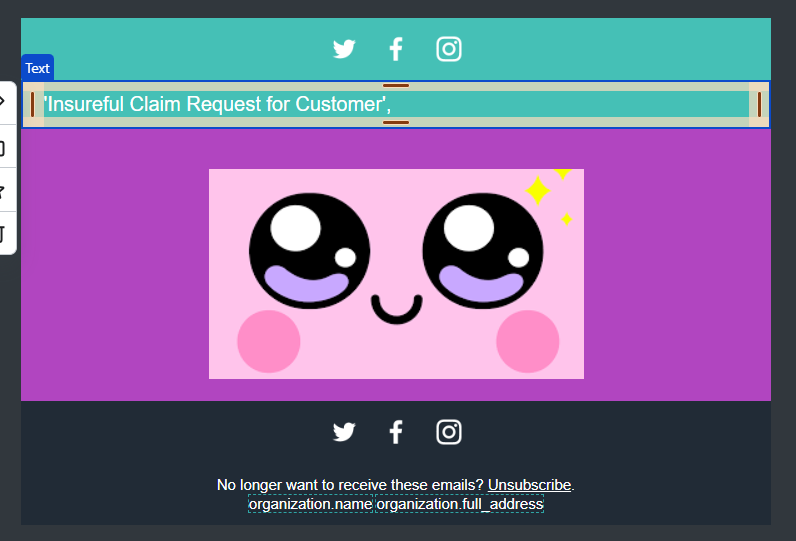
* I am adding content to my template.
* As i am adding the text, add your variable in the div.

This is how it will look after adding text like this. You have so many options to add and customize your template.
**Step 7: Save, Preview, and Review**
After completing your email customization, save the template and preview it to ensure everything appears correctly. Once reviewed, proceed to enable the email within the flow.
* Click on update status and change the status to live.
* If you want to trigger manually, you can click on "manual."
**Step 8: Activate the Flow**
After all configurations are completed, set the flow status to Live. Your email automation is now active and ready to send emails based on Insureful events.